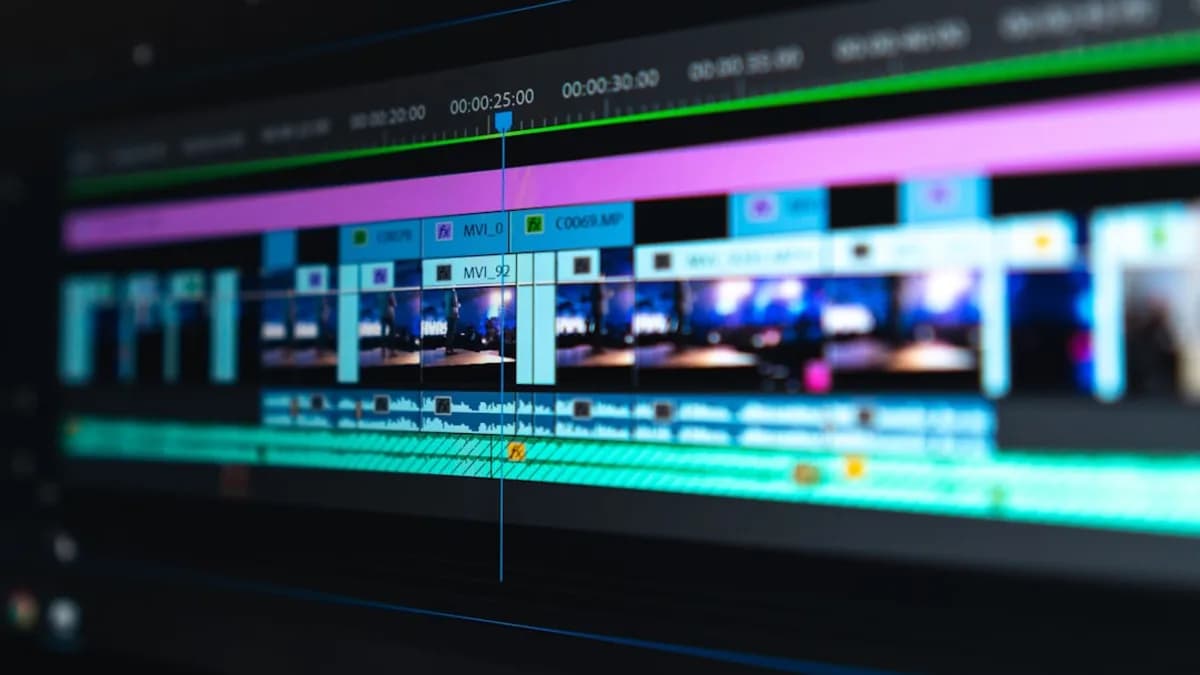
Selecting the right video editor in 2026 can make or break your creative workflow. With an explosion of feature-rich options and diverse pricing models, knowing how to choose the best video editing software for your needs is more crucial than ever. Whether you’re a beginner, a hobbyist, or a professional creator, this tutorial will walk you through each step of the decision-making process—grounded in independent research, real user feedback, and expert comparisons.
Why Selecting the Right Video Editor Is Crucial
Choosing the best video editing software isn’t just about flashy effects or big brand names—it’s about finding a tool that matches your skill level, supports your devices, fits your budget, and empowers your creative goals. As noted by DIYVideoEditor.com and Nexacu, the right software can streamline your workflow, help you maintain output quality, and even determine whether editing feels like a joy or a chore.
“What is the best video editing software is a difficult task given that everyone will have different requirements as to what they want that software to do.”
— DIYVideoEditor.com
With so many options (from pro-grade suites to beginner-friendly apps), making an informed, personalized choice is key to maximizing your editing potential.
Assessing Your Video Editing Skill Level and Goals
Before you dive into product comparisons, take a moment to reflect on your own experience and ambitions. Your skill level and project type will shape which features and workflows are most important.
Skill Levels
- Beginner: Just starting out, looking for intuitive interfaces and built-in guides.
- Intermediate: Comfortable with timelines, effects, and basic audio editing.
- Professional/Prosumer: Demanding advanced features, color grading, multicam editing, and more.
Project Goals
- Social Media Clips: Fast, template-driven edits for TikTok, Instagram, YouTube Shorts.
- Vlogs & Tutorials: Multi-clip timelines, basic effects, audio tools.
- Full-Length Productions: Advanced color correction, multi-layer timelines, export controls.
- Specialty Content: 360-degree video, AI-powered effects, or high-resolution output.
“The first step in choosing the right video editing software is to understand your specific requirements... Are you a professional editor or a beginner looking to edit your adventure vlogs?”
— Nexacu
Action Step: Write down your typical project type(s) and the editing skills you already have or want to develop. This clarity will help you filter options in the next steps.
Identifying Must-Have Features for Your Projects
The best video editing software for you is the one that delivers the features you’ll actually use. Here's what independent reviews and user forums recommend considering:
Essential Features
- File Import Flexibility: Ability to import from various devices (phones, cameras, drones) and support for a wide range of file types.
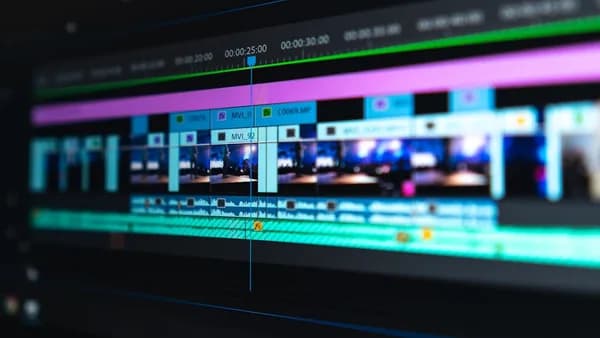
- Timeline Editing: Easy clip arrangement, splitting, trimming, and basic transitions.
- Export Capabilities: Support for desired resolutions (1080p, 4K, 8K) and file formats.
- Effects & Corrections: Transitions, color correction, filters, and stabilization tools.
- Audio Tools: Add music, adjust levels, and sync audio-video tracks.
- AI Tools: Automated editing, text-based editing, or face-swapping (increasingly common in 2026).
Advanced & Specialty Features
- Multi-Camera Editing: For creators working with multiple camera angles.
- 360-Degree Video: End-to-end support for immersive content.
- Templates & Presets: For rapid social media or branded content creation.
- Cloud Integration: Direct exports to YouTube and other platforms, cloud storage options.
“At a bare minimum... imports files from a wide range of devices and sources, an intuitive user interface, efficient editing, compatibility with a wide range of digital file types, effects, transitions, correction tools, and A.I. implementation depending on user requirements and skill level.”
— DIYVideoEditor.com
Action Step: Make a checklist of your must-have features—then use it to evaluate each software option.
Evaluating Software Compatibility with Your Devices
Not all video editors run everywhere. Some are Windows-only, others Mac-exclusive, and some are cross-platform or web-based. Compatibility affects both your editing experience and workflow efficiency.
Platform Support Table
| Software | Windows | Mac | Linux | Web-Based | Mobile App |
|---|---|---|---|---|---|
| CyberLink PowerDirector | ✔️ | ✔️* | ✖️ | ✖️ | ✔️ |
| Wondershare Filmora | ✔️ | ✔️ | ✖️ | ✖️ | ✔️ |
| Movavi Video Editor | ✔️ | ✔️ | ✖️ | ✖️ | ✔️ |
| DaVinci Resolve | ✔️ | ✔️ | ✔️ | ✖️ | ✖️ |
| CapCut | ✔️ | ✔️ | ✖️ | ✔️ | ✔️ |
| iMovie | ✖️ | ✔️ | ✖️ | ✖️ | ✔️ |
| Clipchamp | ✔️ | ✔️ | ✖️ | ✔️ | ✖️ |
*PowerDirector for Mac may have limited features compared to Windows version; check vendor site for current parity in 2026.
Key Considerations:
- Mac Users: iMovie, Final Cut Pro, DaVinci Resolve, and Filmora are popular options.
- Windows Users: PowerDirector, Filmora, Movavi, DaVinci Resolve, and Clipchamp.
- Linux Users: Kdenlive and DaVinci Resolve.
- Web-Based Editors: CapCut, Clipchamp—good for users with lower-spec hardware or who prefer cloud workflows.
“There are options for Windows, Mac, and Linux, plus web apps for use in a desktop browser. That's all to say: you won't be left out just because you're looking for free.”
— Zapier
Action Step: Check your computer’s operating system and hardware specs, then eliminate any incompatible options.
Comparing Pricing Structures and Free Trial Options
Pricing in 2026 ranges from totally free editors to monthly or annual subscriptions, with most paid tools now offering at least a free trial period. It’s vital to balance costs against both feature set and frequency of use.
Pricing Comparison Table (Where Available)
| Software | Free Version | Notable Limits | Paid Version (2026) | Trial/Refund Policy |
|---|---|---|---|---|
| DaVinci Resolve | Yes | Some features/effects restricted | Studio: Paid (price varies) | Free version available |
| CapCut | Yes | Some advanced features premium | Premium: Price varies | Free with optional paid |
| Adobe Premiere Pro | No | - | $28/month standalone | Trial available |
| Wondershare Filmora | No* | Watermark/trial limits on free | €70 one-time (per Reddit) | Free trial (watermark) |
| PowerDirector 365 | No | - | Subscription (price varies) | Free trial available |
| Movavi Video Editor | No* | Watermark/trial limits on free | Paid (price varies) | Free trial (watermark) |
| iMovie | Yes (Mac only) | - | Free | N/A |
| Clipchamp | Yes | Some premium assets restricted | Paid (price varies) | Free version available |
*Filmora and Movavi’s free trials export with watermark or have feature limits, per user and expert feedback.
“Free video editors often come with technical and legal limitations, yet options like DaVinci Resolve for general use, iMovie on Mac, and ClipChamp on Windows offer substantial features without the cost.”
— Nexacu
“I don’t mean to go on and on about it (OK, I do mean to go on and on) but please... use the free trials.”
— DIYVideoEditor.com
Key Takeaways
- Free Editors: DaVinci Resolve, CapCut, iMovie, Clipchamp, Kdenlive (Linux).
- Paid Editors: PowerDirector, Filmora, Movavi, Adobe Premiere Pro.
- Trial Advice: Always test the free version or trial—especially to check for watermarks, export limits, and feature restrictions.
Testing User Interface and Workflow Efficiency
Even the “most powerful” editor is worthless if it makes you dread the editing process. Usability and workflow efficiency are paramount—especially for beginners or those editing frequently.
User Feedback & Expert Insights
- Filmora: Praised for its simple, elegant, and intuitive interface—highly recommended for beginners by both DIYVideoEditor.com and Reddit users.
- Movavi Video Editor: User-friendly, versatile, supports wide input/output, and allows users to “effortlessly edit videos.”
- DaVinci Resolve: Offers professional-level tools but has a steeper learning curve; some users report crashes or hardware demands, especially with advanced features like Fusion.
- PowerDirector: Known for speed and resource management; some users find certain tasks (like titling) require more steps.
“Filmora handles everything from import to export and it all happens via an interface that is simple, elegant and extremely intuitive.”
— DIYVideoEditor.com
“Da Vinci resolve. I tried a few before settling. It’s truly awesome and free... Once you've got a workflow down that works for your videos it's really efficient.”
— Reddit /r/NewTubers
“An ideal video editing tool should have a simple, easy-to-use interface allowing quick access to fundamental tasks... Efficient workflow is facilitated by fast rendering and exporting features.”
— Nexacu
Action Step
- Try Before You Buy: Download free versions or trials and attempt a short edit. Assess if the interface feels comfortable and if your workflow is efficient.
- Check for Tutorials: A steep learning curve is easier to overcome if there are plenty of learning resources (see next section).
Considering Customer Support and Learning Resources
Great editing software is backed by robust support and high-quality learning materials. This is especially important if you’re new to editing or adopting a more advanced tool.
What to Look For
- Official Tutorials: Video walkthroughs, documentation, and guides from the software vendor.
- Active Communities: Forums, Reddit threads (like /r/NewTubers), and user groups.
- In-App Guidance: Tooltips, wizards, or step-by-step project templates.
“Ample support documentation, tutorials, and an active community of users can be huge, especially for more advanced editors.”
— Zapier
Examples from User Feedback:
- DaVinci Resolve: “There’s tons of resources and tutorials for it, including some on their site that go over fully editing a video together from a bunch of clips and audio files.” (Reddit)
- Adobe Premiere Pro: “There is a hoard of great courses out there for Premiere.” (ThePodcastHost.com)
- Filmora & Movavi: Both offer built-in guides and are praised for their ease of onboarding.
Action Step: Browse the vendor’s support portal and search YouTube or Reddit to confirm the presence of an active, helpful learning ecosystem.
Making the Final Decision: Checklist for Selection
With all the research and testing complete, distill your findings into a final, personalized decision. Here’s a checklist based on research-backed best practices:
Video Editing Software Selection Checklist
- Skill Fit: Is the software appropriate for your current skill level and learning ambitions?
- Feature Match: Does it cover all your must-have features (import, timeline editing, effects, export formats, etc.)?
- Compatibility: Will it run smoothly on your device(s)?
- Pricing & Value: Does the free version suffice, or is the paid tier worth it? (Factor in trial experiences.)
- Usability: Is the interface intuitive and does the workflow feel efficient?
- Support: Are ample tutorials and community resources available?
- Output Needs: Can it export at the resolutions and formats you require for your platform of choice?
- Stability: Any consistent reports of crashes or performance issues on hardware similar to yours?
Tips for Getting Started with Your Chosen Software
Once you’ve selected your video editing software, set yourself up for a smooth start:
- Complete Onboarding Tutorials: Most editors offer guided walkthroughs—don’t skip them.
- Edit a Test Project: Practice with a small sample project to get comfortable with the workflow.
- Explore Community Resources: Join forums, subreddits, and YouTube channels for tips and troubleshooting.
- Bookmark Official Documentation: Reference guides and hotkey lists will save you time.
- Stay Updated: Most modern editors (like PowerDirector 365) update frequently—keep your software current for new features and bug fixes.
- Experiment Gradually: Try out advanced features (like AI tools or color grading) one at a time so as not to overwhelm yourself.
FAQ: Choosing the Best Video Editing Software in 2026
Q: What is the best free video editing software right now?
A: According to Zapier and Reddit, DaVinci Resolve is the most powerful free video editor for both Windows and Mac, with CapCut also recommended for its ease of use and depth.
Q: Is Filmora still good for beginners in 2026?
A: Yes, both DIYVideoEditor.com and Reddit users highlight Wondershare Filmora as an excellent choice for beginners due to its intuitive interface and sufficient features for semi-pro results.
Q: Do free editors have watermarks or export limits?
A: Some do. For example, Filmora’s free version exports with a watermark and restricts some features. DaVinci Resolve’s free version allows 4K exports but restricts certain effects. Always confirm before committing to a long project.
Q: What’s the difference between DaVinci Resolve and DaVinci Resolve Studio?
A: The free DaVinci Resolve provides most editing features, while Studio (paid) unlocks advanced effects and tools. Be sure to download the correct version.
Q: Is there a “best” editor for Mac users?
A: iMovie is included free with Mac and is ideal for simple projects. DaVinci Resolve and Filmora are also popular, while Final Cut Pro offers pro-level tools at a premium price.
Q: Should I pick a standalone or online video editor?
A: For full-length or complex projects, standalone software (like Premiere Pro, PowerDirector, or Resolve) offers more power. For quick social content or lower-end devices, online editors (like CapCut or Clipchamp) may be best.
Conclusion: Maximizing Your Video Editing Potential
Choosing the best video editing software in 2026 is a process—one that depends on your goals, skills, hardware, and budget. The research is clear: no one-size-fits-all solution exists, but by assessing your needs, prioritizing essential features, confirming device compatibility, and leveraging free trials, you’ll find a tool that empowers your creativity.
“Within the software on this page you can get an excellent video editor to suit your needs and the differences between all of them are quite small... use the free trials.”
— DIYVideoEditor.com
With robust free options (like DaVinci Resolve and CapCut), intuitive beginner tools (Filmora, Movavi), and professional suites (Premiere Pro, PowerDirector), every creator can find the right fit. Take the time to try before you buy, draw on active user communities for support, and keep experimenting—your perfect editor is out there, ready to bring your vision to life.
The bottom line:
When you choose the best video editing software for your workflow—grounded in real research and hands-on testing—you unlock faster edits, fewer frustrations, and greater creative freedom. Start with your needs, use the checklist above, and embrace the vibrant world of video editing in 2026.