Updated (June 2026): This guide has been refreshed with current pricing models, AI editing developments, short-form workflow considerations, and changes to tools such as CapCut, DaVinci Resolve, Adobe Premiere Elements, and HitFilm.
With the sheer volume of content uploaded to YouTube every minute, standing out as a creator requires more than a camera and a good idea. Choosing the best video editing software for YouTube creators is now a strategic workflow decision: the right editor can speed up production, improve retention, generate captions, clean up audio, reframe clips for Shorts, and help maintain a consistent brand across every upload.
This guide compares the best options for YouTube creators in 2026, from free beginner tools to professional editing suites.
Understanding the Needs of YouTube Creators
YouTube creators have different editing needs than traditional filmmakers. Most creators need to publish consistently, adapt long-form videos into Shorts, optimize thumbnails and titles, and keep viewers engaged in the first few seconds.
Key considerations for YouTube creators include:
- Speed: Fast trimming, templated intros, batch exports, and AI-assisted editing matter.
- Content style: Gaming, tutorials, podcasts, vlogs, reaction videos, and Shorts all require different tools.
- AI features: Auto-captions, silence removal, text-based editing, background removal, and audio cleanup can save hours.
- Scalability: A solo creator may start with CapCut or iMovie, then move to DaVinci Resolve, Final Cut Pro, or Premiere Pro.
- Budget: Free tools are stronger than ever, but paid tools often provide better effects, collaboration, stock assets, and automation.
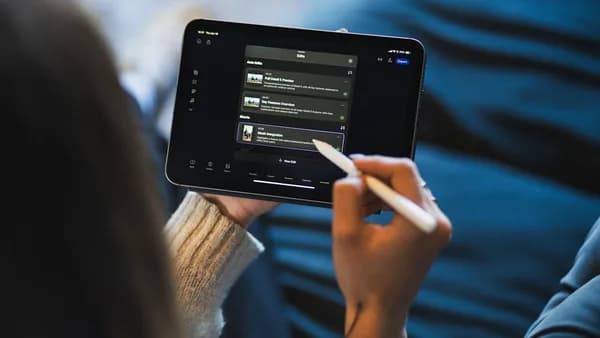
- Platform fit: Desktop, mobile, browser-based, and tablet workflows all have tradeoffs.
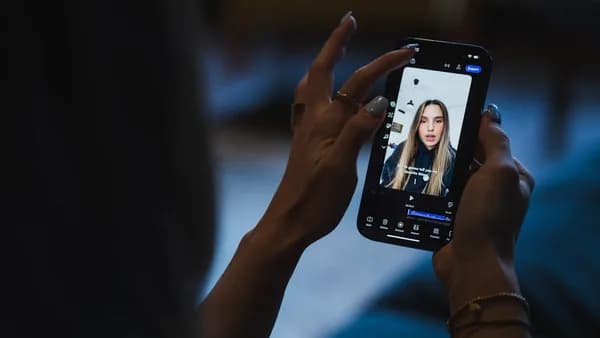
The best choice is not always the most powerful editor. It is the one that fits your upload schedule, device, skill level, and content format.
Key Video Editing Features for YouTube Content
Essential Editing Features
Look for these basics before committing to any editor:
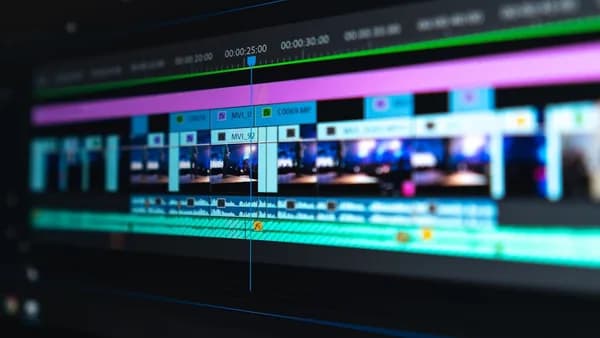
- Multi-track timeline editing
- Fast trimming and ripple edits
- Text, titles, lower thirds, and captions
- Audio cleanup and music controls
- YouTube-ready exports in MP4/H.264 or H.265
- Vertical, square, and horizontal aspect ratios
- Templates for intros, outros, and branding
- Reliable performance with 1080p, 4K, and high-frame-rate footage
Advanced and AI-Powered Tools
AI has become one of the biggest differentiators in video editing software. In 2026, the most useful AI tools for YouTubers include:
- Automatic captions and subtitle styling
- Text-based editing from transcripts
- Silence and filler-word removal
- AI voice cleanup and background noise reduction
- Auto-reframing for Shorts
- Background removal without a green screen
- Smart masking and object tracking
- AI-generated B-roll, titles, or social clips in some tools
Professional editors still benefit from manual control, but AI can dramatically reduce repetitive work.
Collaboration and Integration
If you work with an editor, thumbnail designer, producer, or sponsor, consider:
- Cloud project sharing
- Commenting and review links
- Version history
- Team asset libraries
- YouTube export presets
- Integration with Adobe Creative Cloud, Frame.io, Canva, or stock media libraries
Comparing Popular Video Editors for YouTube
| Software | Free? | Best For | Platforms | Key Strengths | Payment Model |
|---|---|---|---|---|---|
| Adobe Premiere Pro | Trial only | Professionals and teams | Windows, Mac | Advanced editing, AI tools, Frame.io, pro workflows | Subscription |
| Final Cut Pro | Trial | Mac-based creators | Mac; iPad version available separately | Fast performance, magnetic timeline, strong 4K/8K workflows | One-time Mac purchase; iPad subscription |
| DaVinci Resolve | Yes | Best free pro editor | Windows, Mac, Linux, iPad | Color grading, Fairlight audio, Fusion VFX, powerful free version | Free; paid Studio upgrade |
| CapCut | Yes | Shorts, mobile, quick edits | iOS, Android, desktop, web | Captions, templates, auto edits, vertical video | Free; Pro tier available |
| Filmora | Trial/free limited | Beginners and casual creators | Windows, Mac, mobile | Easy interface, AI tools, effects, templates | Subscription or perpetual options |
| CyberLink PowerDirector | Trial/free limited | Enthusiasts | Windows, Mac, mobile | Templates, motion tracking, AI tools | Subscription or perpetual options |
| iMovie | Yes | Apple beginners | Mac, iPhone, iPad | Simple, free, reliable | Free |
| Adobe Premiere Elements | Trial | Guided beginner editing | Windows, Mac | Simple interface, guided edits, AI-assisted tools | Term-based license |
| Microsoft Clipchamp | Yes | Windows and browser users | Windows, web | Simple edits, templates, screen recording | Free; Microsoft 365/paid features |
| Descript | Limited free | Podcasts, talking-head videos | Mac, Windows, web | Text-based editing, captions, overdub-style workflows | Subscription |
| Shotcut / OpenShot | Yes | Open-source editing | Windows, Mac, Linux | Free, cross-platform basics | Free |
| Lightworks | Yes, limited | Traditional editing | Windows, Mac, Linux | Pro editing heritage, paid feature unlocks | Free; paid tiers |
Note: HitFilm Express is no longer the clear go-to free VFX recommendation it once was. Creators focused on free professional editing are generally better served by DaVinci Resolve, while creators focused on quick effects and social formats may prefer CapCut or Filmora.
Pros and Cons Snapshot
Adobe Premiere Pro
Pros: Industry standard, deep feature set, strong collaboration, excellent ecosystem.
Cons: Subscription cost, learning curve, can be demanding on hardware.
DaVinci Resolve
Pros: Best free professional editor, outstanding color tools, strong audio and VFX modules.
Cons: More complex than beginner tools; Studio upgrade required for some advanced AI and GPU features.
Final Cut Pro
Pros: Very fast on Apple silicon Macs, one-time Mac purchase, excellent for solo creators.
Cons: Mac-focused ecosystem; collaboration is less universal than Adobe workflows.
CapCut
Pros: Excellent for Shorts, captions, templates, social-first editing, mobile workflows.
Cons: Some features require CapCut Pro; long-form professional workflows are more limited.
Filmora
Pros: Easy to learn, strong templates and AI features, good for beginners.
Cons: Less flexible than pro tools; free exports may include watermarks or limitations.
Step-by-Step Guide to Evaluating Software Options
1. Assess Your Skill Level and Editing Needs
- Beginner: Start with iMovie, Clipchamp, CapCut, Filmora, or Premiere Elements.
- Intermediate: Consider PowerDirector, Final Cut Pro, or DaVinci Resolve.
- Professional: Choose Premiere Pro, DaVinci Resolve Studio, or Final Cut Pro.
2. Match the Tool to Your Content
- Shorts and vertical video: CapCut, Premiere Pro, DaVinci Resolve, Filmora.
- Talking-head and podcast clips: Descript, Premiere Pro, DaVinci Resolve.
- Gaming videos: DaVinci Resolve, Premiere Pro, PowerDirector.
- Vlogs: Final Cut Pro, iMovie, Filmora, CapCut.
- Cinematic content: DaVinci Resolve, Final Cut Pro, Premiere Pro.
- Tutorials and screen recordings: Clipchamp, Camtasia, Descript, Premiere Pro.
3. Check Platform Compatibility
Make sure your editor supports your device and footage format. If you shoot on iPhone, action cameras, mirrorless cameras, or screen capture tools, test a short project before committing.
4. Compare Pricing and Trials
Free tools are often enough to start. Paid tools become worthwhile when they save time, improve quality, or support a team workflow. Always test export quality, watermark rules, and caption features before paying.
5. Evaluate Learning Resources
Choose software with strong tutorials, community support, and regular updates. Premiere Pro, Final Cut Pro, DaVinci Resolve, CapCut, and Filmora all have large tutorial ecosystems.
Tips for Optimizing Video Quality and Export Settings
YouTube will re-encode your upload, so export settings matter.
Recommended YouTube Export Settings in 2026
- Format: MP4
- Video codec: H.264 for compatibility; H.265/HEVC can be useful for smaller 4K files
- Resolution: 1080p minimum; 4K recommended when available
- Frame rate: Match your source footage: 24, 30, or 60 fps
- Bitrate: Use your editor’s YouTube preset or a high-quality custom setting
- Audio: AAC, 48 kHz, stereo
- Color: Use standard Rec.709 for most YouTube videos unless you understand HDR workflows
For Shorts, export in 9:16 vertical format, typically 1080x1920, and ensure captions and key visuals are not blocked by YouTube interface elements.
Integrating Editing Software with YouTube Workflow
A strong YouTube workflow goes beyond the edit.
Useful Workflow Features
- YouTube export presets
- Auto-caption generation
- Chapter-friendly timeline markers
- Thumbnail frame export
- Brand kits and reusable templates
- Shorts reframing from long-form videos
- Review links for editors or clients
- Stock music and sound effects libraries
Adobe users may benefit from Premiere Pro, After Effects, Photoshop, Audition, and Frame.io. Apple users often prefer Final Cut Pro with Motion and Compressor. Solo creators who want a powerful free workflow should seriously consider DaVinci Resolve.
Budget Considerations and Free vs Paid Options
Best Free Options
- DaVinci Resolve: Best overall free editor for serious YouTube creators.
- CapCut: Best free/low-cost option for Shorts and mobile-first creators.
- iMovie: Best free beginner editor for Apple users.
- Clipchamp: Convenient for Windows users and simple browser-based edits.
- Shotcut/OpenShot: Good open-source choices for basic editing.
Best Paid Options
- Adobe Premiere Pro: Best for professional creators, teams, and Adobe workflows.
- Final Cut Pro: Best paid option for many Mac-based solo creators.
- DaVinci Resolve Studio: Best upgrade for creators who want pro color, effects, and advanced AI/GPU features.
- Filmora: Best paid beginner-friendly editor.
- PowerDirector: Strong option for template-driven editing and enthusiasts.
- Descript: Excellent for text-based editing, interviews, and podcasts.
| Product | Free Tier | Paid Model | Main Limitation |
|---|---|---|---|
| DaVinci Resolve | Yes | Studio upgrade | Some advanced AI, effects, and performance tools require Studio |
| Premiere Pro | Trial | Subscription | No permanent free version |
| Final Cut Pro | Trial | One-time Mac purchase | Mac-focused |
| CapCut | Yes | Pro tier | Some templates, effects, and cloud features may require Pro |
| Filmora | Limited | Subscription/perpetual options | Free exports may be watermarked |
| Clipchamp | Yes | Paid/Microsoft 365 features | Best for simpler projects |
User Interface and Learning Resources
Easiest Editors to Learn
- iMovie
- CapCut
- Clipchamp
- Filmora
- Premiere Elements
Best Editors to Grow Into
- DaVinci Resolve
- Final Cut Pro
- Premiere Pro
If you want the fastest start, use a beginner-friendly editor. If you want to build long-term professional skills, invest time in Resolve, Premiere Pro, or Final Cut Pro.
Common Challenges and How to Overcome Them
1. Steep Learning Curve
Start with templates and tutorials. Learn trimming, audio, captions, and export settings before advanced color or effects.
2. Slow Performance
Use proxy files, reduce playback resolution, close background apps, and store media on a fast SSD.
3. Bad Audio
Use AI voice cleanup, noise reduction, proper music levels, and loudness normalization. Viewers often forgive imperfect visuals before they forgive poor audio.
4. Export Problems
Use YouTube presets, match your frame rate, and export a short test clip before rendering a full video.
5. Too Much Time Spent Editing
Use reusable templates, keyboard shortcuts, caption presets, and AI tools for silence removal, reframing, and transcript-based editing.
Summary and Next Steps for YouTube Creators
The best video editing software for YouTube creators in 2026 depends on your workflow:
- Choose DaVinci Resolve if you want the best free professional editor.
- Choose Adobe Premiere Pro if you need industry-standard tools and team collaboration.
- Choose Final Cut Pro if you edit on a Mac and want speed with a one-time purchase.
- Choose CapCut if Shorts, captions, and mobile editing are your priority.
- Choose Filmora, iMovie, or Clipchamp if you want the easiest starting point.
- Choose Descript if you edit podcasts, interviews, or talking-head videos from transcripts.
Start with the tool that helps you publish consistently. Upgrade when your workflow, revenue, or production demands justify it.
FAQ
Q: What is the best free video editing software for YouTube creators?
A: DaVinci Resolve is the best free option for serious long-form editing. CapCut is the best free/low-cost choice for Shorts and mobile-first editing, while iMovie is ideal for Apple beginners.
Q: Is it worth paying for professional editing software as a new YouTuber?
A: Usually not at first. Start with a free or beginner-friendly editor, then upgrade when you need faster workflows, better effects, collaboration, or professional color and audio tools.
Q: Which video editors have the best AI features for YouTube?
A: Premiere Pro, DaVinci Resolve Studio, CapCut, Filmora, and Descript are among the strongest options for AI captions, audio cleanup, reframing, and transcript-based editing.
Q: Can I edit YouTube videos on my phone?
A: Yes. CapCut, iMovie, PowerDirector, and mobile versions of several editors support phone-based editing. For Shorts, a phone-first workflow can be highly efficient.
Q: What’s the easiest video editor for absolute beginners?
A: iMovie, CapCut, Clipchamp, and Filmora are the easiest starting points for most new creators.
Q: How do I make my videos look best on YouTube?
A: Export in MP4, use 1080p or 4K resolution, match your source frame rate, use clean audio, add readable captions, and rely on your editor’s YouTube preset when available.
Bottom Line
Finding the best video editing software for YouTube creators in 2026 is about matching features to your actual workflow. DaVinci Resolve, Premiere Pro, and Final Cut Pro remain the strongest professional choices, while CapCut, Filmora, iMovie, and Clipchamp make it easier for beginners to publish quickly.
The right editor should help you create better videos faster—not slow you down. Start simple, build repeatable templates, learn the fundamentals, and upgrade as your channel grows.