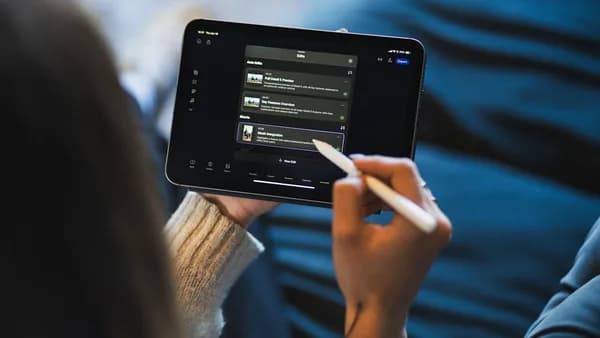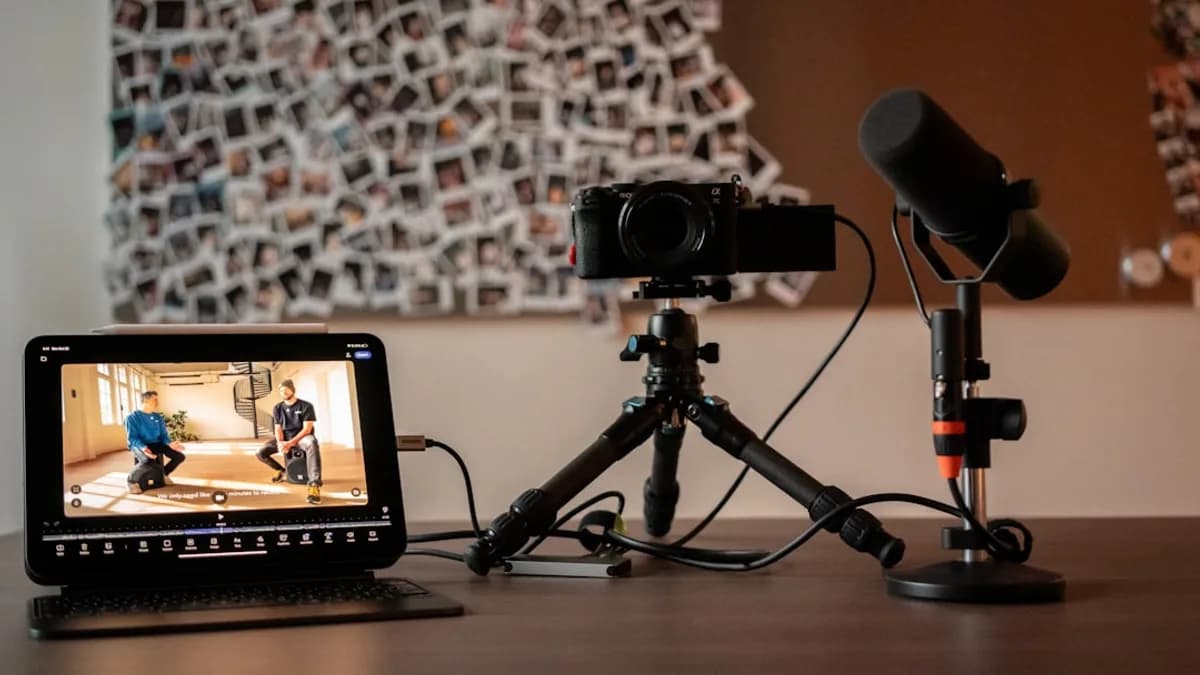
YouTube creators in 2026 face a rapidly evolving landscape, where the right video editing software for YouTube creators can make or break their workflow—and their channel's growth. Choosing the ideal software isn’t just about flashy effects. It’s about fitting your unique needs, content style, and budget. Whether you’re a beginner vlogger or a seasoned gaming channel, this comprehensive guide—grounded in current research—will help you make an informed decision.
Unique Needs of YouTube Creators
YouTube creators require video editing software that handles fast-moving trends, diverse content styles, and frequent uploads. Unlike filmmakers or traditional editors, YouTubers often need:
- Easy-to-use interfaces for quick learning and fast edits
- Support for multiple formats (including vertical and square for Shorts)
- Efficient export options for seamless upload to YouTube
- Collaboration tools for teams or co-creators
- Regular updates to stay ahead of platform changes
“The best video editing software for YouTube can greatly impact your channel’s engagement and visibility. When choosing software, consider user-friendly interfaces and support for multiple formats, as these features can streamline your editing process.”
— SmallBizTrends.com
Understanding Your Channel’s Content Style and Frequency
Before diving into features and pricing, evaluate your channel’s style and upload frequency. This shapes what you need from your editing software.
Content Style
- Vlogs & Lifestyle: Simple cuts, overlays, and music; need fast, intuitive tools.
- Gaming: Advanced color grading, multicam, motion tracking, overlays.
- Tutorials/Education: Titles, transitions, screen recording, annotations.
- Music Videos: High-end color grading, effects, audio manipulation.
Upload Frequency
- Daily/Weekly: Speed and workflow efficiency are critical.
- Occasional/Monthly: You can afford more time on detailed edits.
“Professional-grade tools like Adobe Premiere Pro and DaVinci Resolve offer advanced features, whereas user-friendly choices such as Premiere Elements make editing accessible for beginners.”
— SmallBizTrends.com
Key Video Editing Features for YouTube Videos
The ideal video editing software for YouTube creators should offer features that match your content and workflow. Here are the most important attributes, drawn from real-world reviews:
| Feature | Importance for YouTubers | Software Examples |
|---|---|---|
| User-Friendly Interface | Fast learning, quick edits | iMovie, Canva, Premiere Elements |
| Advanced Effects Library | Stand out, professional look | Adobe Premiere Pro, DaVinci Resolve |
| Support for Multiple Formats | Shorts, vertical, square, 4K, 8K | Final Cut Pro, Premiere Pro |
| Titles & Transitions | Polished, engaging content | Movavi, PowerDirector 365 |
| Royalty-Free Music | Avoid copyright issues | Canva, Premiere Elements |
| Collaboration Tools | Teamwork, shared projects | Kapwing, Adobe Express |
| Regular Updates | Stay current, new features | Shotcut, Premiere Pro |
“Tools for titles, transitions, and royalty-free music improve your video’s appeal. Importantly, many software options are available for free or offer trial versions, letting you explore functionalities before committing to a purchase.”
— SmallBizTrends.com
Budget Considerations: Free vs Paid Software
Your budget directly impacts which editing software you can choose. Fortunately, YouTube creators in 2026 have a range of both free and paid options.
Free Software
- DaVinci Resolve: Powerful free version, advanced tools.
- OpenShot: Drag-and-drop interface, some stability concerns.
- iMovie: Free for Apple users, simple yet effective.
- Canva Video: Free forever, basic editing plus templates.
Paid Software
| Software | Pricing Model | Notable Features |
|---|---|---|
| Adobe Premiere Pro | $20.99/month (after 30-day free trial) | Industry-leading tools, extensive training |
| Movavi Video Suite | $79.95 one-time | Easy to use, quick export to YouTube |
| Final Cut Pro | One-time purchase | Advanced color grading, 8K support |
| CyberLink PowerDirector | Subscription | Multicam editing, motion tracking |
- Free Tier: Offers up to professional-grade tools without upfront cost.
- Paid Subscription: Unlocks advanced features, regular updates, premium support.
- One-Time Purchase: Pay once, own the software; ideal if you dislike ongoing fees.
“Free software like DaVinci Resolve and OpenShot provides essential features without cost, while subscription options like PowerDirector are affordable.”
— SmallBizTrends.com
Step-by-Step Guide to Evaluating Software Options
Selecting the best video editing software for YouTube creators requires a systematic approach:
1. Define Your Needs
- What’s your content style? (Vlog, gaming, tutorial)
- How often do you upload?
- Do you work solo or with a team?
2. List Required Features
- Must-have: titles, transitions, music, export formats
- Nice-to-have: AI tools, advanced color grading, multicam
3. Compare Software
| Software | Skill Level | Core Features | Price |
|---|---|---|---|
| Adobe Premiere Pro | Advanced | Precision editing, effects library | $20.99/mo |
| Canva Video | Beginner | Templates, easy resizing | Free |
| Movavi Video Suite | Intermediate | Fast export, compatible formats | $79.95 once |
4. Test with Free Trials
- Use 30-day free trials (Premiere Pro, Movavi).
- Explore free versions (DaVinci Resolve, Canva).
5. Read Reviews and User Experiences
- Check for stability issues (OpenShot).
- Look for workflow efficiency (Movavi, PowerDirector).
6. Consider Export and Integration
- Does it support direct upload to YouTube?
- Are export settings optimized for YouTube?
Top Video Editing Software Recommended for YouTubers
Based on aggregated research from SmallBizTrends and JustCreative, here are the leading choices in 2026:
1. Adobe Premiere Pro
- Platform: Windows, Mac
- Features: Industry-leading editing tools, vast effects library, integration with Adobe services
- Price: $20.99/month (first 30 days free)
- Pros: Professional quality, frequent updates, extensive training material
- Cons: Steep learning curve, overwhelming for beginners
2. DaVinci Resolve
- Platform: Windows, Mac
- Features: Advanced color grading, multicam, free professional tools
- Price: Free (paid version available)
- Pros: Robust free version, excellent for music and gaming videos
- Cons: Requires powerful hardware, learning curve
3. Canva Video
- Platform: Web-based
- Features: Templates, resizing, music, sound effects
- Price: Free forever
- Pros: Great for beginners, easy to use
- Cons: Video compression needs improvement
4. Movavi Video Suite
- Platform: Windows, Mac
- Features: User-friendly, quick export, compatible formats
- Price: $79.95 one-time
- Pros: Easy to use, fast workflow
- Cons: Performance drops with numerous clips
5. Apple iMovie
- Platform: Mac, iOS
- Features: Chroma-keying, picture-in-picture, simple editing
- Price: Free
- Pros: User-friendly for Apple users
- Cons: Limited advanced features
6. CyberLink PowerDirector 365
- Platform: Windows, Mac
- Features: Multicam, motion tracking, AI tools
- Price: Subscription
- Pros: Affordable, seamless uploads
- Cons: Subscription required
| Software | Best For | Price Model | Standout Feature |
|---|---|---|---|
| Adobe Premiere Pro | Professionals | Subscription | Extensive effects library |
| DaVinci Resolve | Budget/Advanced | Free/Paid | Powerful color grading |
| Canva Video | Beginners | Free | Easy-to-use templates |
| Movavi Video Suite | Intermediate | One-time | Fast export to YouTube |
| iMovie | Apple Beginners | Free | Simple interface |
| PowerDirector 365 | Budget/Pro | Subscription | Multicam editing |
Tips for Optimizing Workflow and Export Settings
Efficient editing and optimized exports are crucial for YouTube success. Here are actionable tips, based on software capabilities:
- Templates: Use built-in templates (Canva, PowerDirector) to speed up repetitive edits.
- Batch Export: Export multiple videos in bulk if your software supports it.
- YouTube Presets: Use export presets for YouTube (Movavi, Premiere Pro) to ensure quality and compatibility.
- Collaboration: Use real-time co-editing tools (Kapwing, Adobe Express) if working with a team.
- Regular Updates: Keep software updated (Shotcut, Premiere Pro) for new features and performance improvements.
“Collaboration tools like Kapwing and Adobe Express enable real-time co-editing and project sharing, enhancing teamwork among creators.”
— SmallBizTrends.com
Integrating Video Editing with YouTube Publishing Tools
Seamless integration with YouTube makes the publishing process faster and more reliable:
- Quick Export: Movavi, PowerDirector, and several others offer direct export to YouTube, Vimeo, TikTok.
- Format Support: Ensure your software supports YouTube-friendly formats (MP4, MOV, 4K, 8K).
- Thumbnail Creation: Some tools (Canva, Adobe Express) allow quick thumbnail design within the editing suite.
- Metadata Editing: While not all editing software includes this, look for options that streamline title, description, and tags before upload.
Common Mistakes to Avoid When Choosing Software
Avoiding these errors will save time, money, and frustration:
- Overbuying Features: Don’t pay for advanced tools you won’t use (e.g., 8K support for simple vlogs).
- Ignoring Platform Compatibility: Make sure your chosen software works on your OS (Windows, Mac, Web).
- Skipping Free Trials: Always test a free trial before committing.
- Neglecting Export Settings: Choose software with YouTube export presets.
- Forgetting Updates: Outdated software can cause compatibility and performance issues.
“Adobe Premiere Pro offers industry-standard tools for precision but requires a steep learning curve and subscription fees.”
— SmallBizTrends.com
Conclusion: Making the Best Choice for Your YouTube Channel
Choosing the right video editing software for YouTube creators in 2026 is a balance of content needs, budget, and workflow preferences. Beginners might thrive with Canva Video or iMovie, while pros should consider Adobe Premiere Pro or DaVinci Resolve for robust, advanced editing. Intermediate users find Movavi Video Suite’s simplicity and speed ideal. Always start with a free trial, weigh must-have features, and prioritize software that fits your upload frequency and content style.
FAQ: Video Editing Software for YouTube Creators
Q1: What is the best free video editing software for YouTube creators in 2026?
A: According to research, DaVinci Resolve and Canva Video are top free options. DaVinci offers advanced tools; Canva is ideal for beginners.
Q2: Which software has the easiest learning curve for beginners?
A: Canva Video and iMovie are consistently recommended for their intuitive interfaces and simple editing features.
Q3: Is Adobe Premiere Pro worth the subscription fee for YouTubers?
A: If you need professional-grade tools and frequent updates, Adobe Premiere Pro is industry-leading ($20.99/month after free trial). However, it may be overwhelming for beginners.
Q4: How do I choose between free and paid software?
A: Start with free versions or trials. If your workflow needs advanced features (color grading, multicam, AI tools), consider paid options like Premiere Pro or Movavi.
Q5: Can I export directly to YouTube from editing software?
A: Yes; software like Movavi Video Suite, PowerDirector 365, and others support quick export to YouTube.
Q6: What are the most important features for YouTube video editing?
A: User-friendly interface, support for multiple formats, titles/transitions, royalty-free music, collaboration tools, and regular updates.
Bottom Line
The right video editing software for YouTube creators depends on your channel’s style, frequency, and budget. Research shows that Adobe Premiere Pro, DaVinci Resolve, Canva Video, Movavi Video Suite, and iMovie are the most recommended tools for YouTubers in 2026. Start with free trials, match features to your needs, and optimize your workflow for the best results. Staying updated and choosing the right tool can significantly boost your channel’s engagement and visibility.