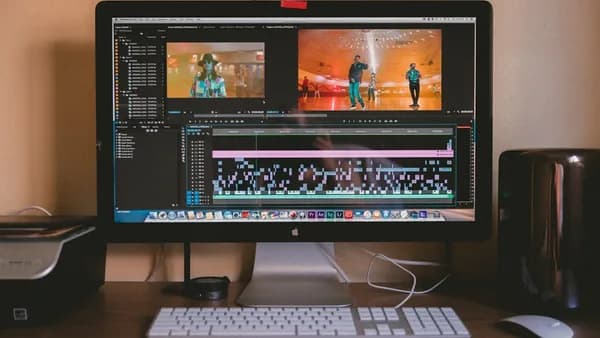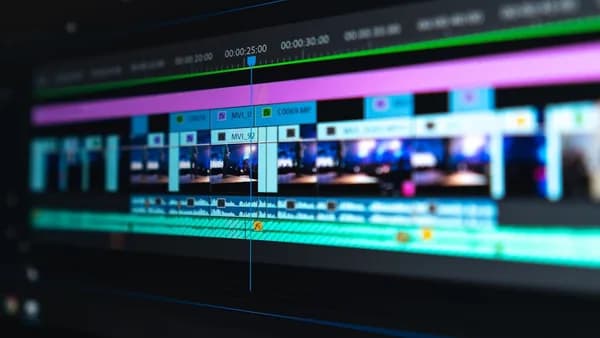
Editing videos like a pro doesn’t have to break the bank—or even cost a penny. Thanks to the rapid evolution of free video editing software in 2026, anyone can create polished, engaging videos for YouTube, TikTok, family projects, or even professional portfolios. This free video editing software tutorial will guide you step-by-step, using real research-backed recommendations and practical techniques. Whether you’re a total beginner or aspiring creator, you’ll learn how to install, edit, enhance, and export your videos at a professional level—all without spending a dime.
Benefits of Using Free Video Editing Software
Opting for free video editing software in 2026 offers a range of advantages, especially for beginners and creators on a budget:
- Cost Savings: High-quality editing tools like DaVinci Resolve, iMovie, and Clipchamp are entirely free, removing financial barriers.
- Professional Features: Many free tools now rival paid platforms, offering advanced color grading, visual effects, and audio mastering.
- No Watermarks: Leading free editors allow watermark-free exports, ensuring your content looks clean and professional.
- Beginner Accessibility: Platforms like iMovie and Clipchamp offer templates, guided workflows, and intuitive interfaces ideal for newcomers.
- Cross-Device Flexibility: Some editors, such as iMovie, let you start a project on your phone and finish on your computer seamlessly.
"DaVinci Resolve is the undisputed powerhouse of free video editing software, offering a complete Hollywood-grade production suite at no cost."
— ShortGenius.com
Overview of Top Free Video Editors in 2026
Choosing the right free video editing software is crucial. Based on hands-on reviews and course recommendations, here are the most reliable options for professional-quality results:
| Software | Platform | Core Features | Watermarks | Export Quality | Beginner Friendly | Advanced Tools |
|---|---|---|---|---|---|---|
| DaVinci Resolve | Windows, Mac | Color grading, VFX, audio mastering | No | Up to 4K UHD/60p | Medium | Yes (Fusion, Fairlight) |
| iMovie | Mac, iOS | Magic Movie, Storyboards, effects | No | 4K | High | Limited |
| Clipchamp | Web, Windows | Templates, auto-captions, stock media | No | 1080p | High | Limited |
1. DaVinci Resolve
- Professional-level toolset for free
- Integrated "Cut" page for quick edits
- Advanced color grading and VFX (Fusion)
- Steep learning curve, requires a decent GPU
2. iMovie
- Pre-installed on most Apple devices
- Magic Movie and Storyboards for easy creation
- Seamless sync across Apple devices
- Limited advanced features, Apple-only
3. Clipchamp
- Browser-based, low hardware requirements
- Templates and AI-powered tools
- Watermark-free exports up to 1080p
- Advanced features/4K reserved for paid tiers
"The free plan provides core editing tools and watermark-free exports up to 1080p, which is more than enough for most online content."
— ShortGenius.com
Installing and Setting Up Your Chosen Software
Getting started is straightforward, with direct download links and simple installation processes:
DaVinci Resolve
- Download: Visit DaVinci Resolve’s official page.
- Install: Follow the installation wizard for Windows or Mac.
- Hardware Check: Ensure your system meets minimum requirements (especially GPU).
iMovie
- Access: Pre-installed on most Macs, iPhones, and iPads.
- Update: Use the App Store to download updates if needed.
- Sync: Enable iCloud for project syncing across devices.
Clipchamp
- Web App: Go to Clipchamp’s website and sign up.
- Windows App: Download from the Microsoft Store if preferred.
- Login: Use your Microsoft account for integration with OneDrive.
"Microsoft Clipchamp is the perfect entry point for those seeking an uncomplicated, browser-based editing experience."
— ShortGenius.com
Basic Video Editing Techniques Explained
Every professional video starts with solid basics. According to the Great Learning course and user reviews:
- Organizing Footage: Sort your clips in the timeline; label by scene or shot type.
- Assembly Cuts: Drag your selected clips onto the timeline for rough assembly.
- Trimming & Cutting: Use tools to cut excess footage and adjust timing.
- Close-ups & Cutaways: Insert reaction shots or alternate angles for visual interest.
- Fine-tuning Edits: Adjust clip boundaries and transitions for smooth flow.
Hands-on Example (Premiere Pro, DaVinci Resolve, Clipchamp)
# Pseudocode for trimming clips in DaVinci Resolve
import davinci_resolve as dr

project = dr.open_project("MyVideo")
timeline = project.timeline
clip = timeline.get_clip("Intro")
clip.trim(start=5, end=60)  # Keep seconds 5 to 60
timeline.save()
"The lessons covered important topics such as trimming, transitions, and audio syncing, which gave me a solid foundation."
— Great Learning course review
Adding Transitions, Effects, and Text
Enhance your videos with effects and professional polish:
- Transitions: Fade, dissolve, slide, or custom transitions between clips.
- Effects: Color filters, slow motion, and green-screen (in iMovie/DaVinci Resolve).
- Text: Titles, lower thirds, captions—add via templates or custom design.
| Feature | DaVinci Resolve | iMovie | Clipchamp |
|---|---|---|---|
| Transitions | Wide selection | Basic options | Template-driven |
| Effects | Advanced VFX | Filters, green-screen | Filters, overlays |
| Text/Titles | Customizable | Templates | Templates |
Adding Text in iMovie
- Select clip
- Click “Titles”
- Drag template onto timeline
- Edit text and style
"Titles, Filters & Effects...perfect for adding quick, professional-looking flair to vlogs or social posts."
— ShortGenius.com
Working with Audio Tracks and Voiceovers
Audio is crucial for professional-quality video:
- Import Audio: Add music, sound effects, or voice recordings to your project.
- Sync Audio: Align clips and audio for lip sync or timing.
- Sound Mastering: Adjust volume levels, remove noise, and add effects (DaVinci Resolve’s Fairlight).
- Voiceovers: Record directly into the timeline (supported in Clipchamp and DaVinci Resolve).
Example Workflow
- Import track: Drag MP3/WAV file into audio track.
- Trim and sync: Match audio to video timing.
- Adjust levels: Use volume sliders or keyframes.
"A significant focus will be on enhancing your videos with professional-level finishing touches, utilizing insider tips and shortcuts to streamline your workflow."
— Great Learning course
Exporting and Optimizing Video for Different Platforms
Export settings matter for quality and compatibility:
| Platform | Best Export Settings | Supported by Free Editors |
|---|---|---|
| YouTube | 1080p or 4K, MP4, 60fps | DaVinci Resolve, iMovie, Clipchamp |
| TikTok | 1080p, vertical (9:16) | DaVinci Resolve, Clipchamp |
| Facebook/Instagram | 1080p, square/vertical | All listed editors |
- DaVinci Resolve: Export up to 4K UHD/60fps, no watermarks.
- iMovie: Export in 4K, easy sharing to social platforms.
- Clipchamp: Free version exports up to 1080p, direct upload to cloud or social.
Export Steps (DaVinci Resolve)
- Go to Deliver page
- Choose preset (YouTube, TikTok, etc.)
- Set resolution and frame rate
- Render and save
"The free version is remarkably generous, supporting resolutions up to 4K UHD at 60 frames per second without watermarks."
— ShortGenius.com
Troubleshooting Common Issues
Even the best free video editing software can pose challenges:
- Performance Lag: DaVinci Resolve requires a good GPU; try Clipchamp for older computers.
- File Compatibility: Not all formats import smoothly; convert files if needed.
- Crashes: Save projects frequently, and update software to the latest version.
- Audio Sync Problems: Double-check timeline alignment.
- Export Errors: Confirm export settings match platform requirements.
"Steep learning curve and requires a powerful computer, particularly a good GPU."
— ShortGenius.com
Advanced Tips for Enhancing Video Quality
Ready to take your editing to the next level? The free Great Learning course and DaVinci Resolve offer these advanced techniques:
- Color Grading: Use DaVinci Resolve’s color panel for cinematic looks.
- Visual Continuity: Match shots for consistent tone and lighting.
- Sound Design: Master audio with Fairlight tools or Premiere Pro.
- Motion Graphics: Add animated text or overlays (DaVinci Resolve’s Fusion).
- Storytelling: Plan edits for pacing and narrative flow.
"I learned to use professional tools like Adobe Premiere Pro, Effects, some useful technical words, and color grading, and explored storytelling through visuals."
— Great Learning course review
Conclusion and Next Steps for Aspiring Editors
With today’s free video editing software, anyone can edit videos like a pro—no budget required. Start with beginner-friendly platforms like iMovie or Clipchamp, then grow into advanced tools such as DaVinci Resolve. Take advantage of free courses like Great Learning’s video editing basics to master essential workflows, from organizing footage to exporting polished content. Practice, experiment, and share your creations. The right software, combined with hands-on learning, is the key to unlocking your creative potential in 2026.
FAQ: Free Video Editing Software Tutorial
Q1: What is the best free video editing software for beginners in 2026?
A1: According to research, DaVinci Resolve offers professional features, while iMovie and Clipchamp are very beginner-friendly with intuitive templates and guided workflows.
Q2: Does DaVinci Resolve add watermarks to exported videos?
A2: No, DaVinci Resolve’s free version supports watermark-free exports up to 4K UHD at 60fps.
Q3: Can I edit videos on my phone for free?
A3: Yes, iMovie is available on iPhone and iPad, offering easy editing and seamless sync with Mac.
Q4: What if my computer is not powerful enough for DaVinci Resolve?
A4: Microsoft Clipchamp is browser-based and works well on average computers without high hardware requirements.
Q5: Where can I learn video editing for free?
A5: The Great Learning platform offers a free course covering basics, workflows, and hands-on exercises with professional software.
Q6: How can I add professional effects and transitions in free software?
A6: DaVinci Resolve and iMovie include a wide range of transitions, effects, and text templates. Clipchamp provides template-driven effects for quick enhancement.
Bottom Line
Free video editing software in 2026 delivers powerful, professional-grade tools for creators at every skill level. DaVinci Resolve stands out for advanced users, while iMovie and Clipchamp are ideal for beginners seeking simplicity and speed. Supported by free online courses, you can master editing basics, add effects, and export high-quality videos without watermarks or cost. Start your editing journey today—with the right tools and guidance, your next video could be your best yet.