Get Ready to Simplify Your iPhone Experience with Apple Shortcuts
One tap can launch you straight into the settings of any app on your iPhone—no more hunting through the endless Settings maze. That’s the power of a single-step Apple Shortcut, a trick that’s racked up praise not for complexity, but for ruthless efficiency, as highlighted by 9to5Mac.
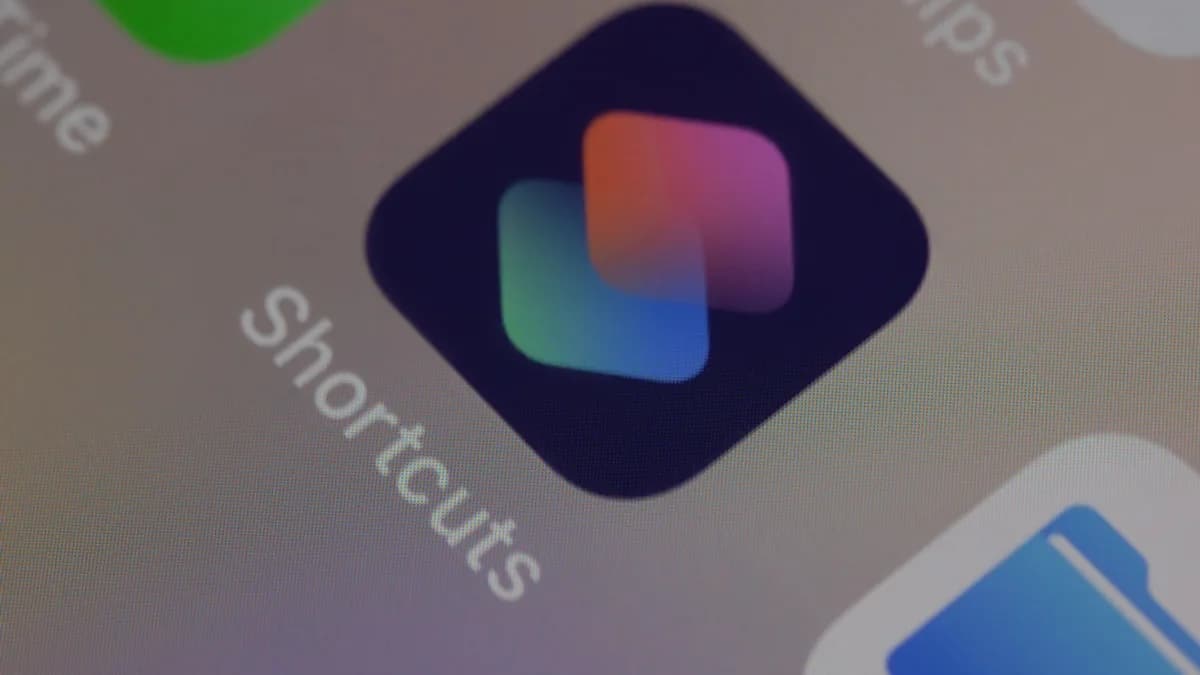
Apple Shortcuts have evolved into a workflow powerhouse, automating everything from sending texts at sunrise to batch-editing photos with AI in iOS 17 and iOS 18. But here’s the twist: the shortcuts that stick—the ones you use daily—are often dead simple. A prime example? A shortcut that opens an app’s settings directly. No scrolling, no wasted seconds.
You’ll need an iPhone running iOS 16 or later, and the Shortcuts app (installed by default since iOS 13). Power users know: simple shortcuts are sticky. This is one you’ll actually use.
Create the Single-Step Shortcut to Open Any App’s Settings Instantly
Launch the Shortcuts App.
Open the Shortcuts app on your iPhone. If you deleted it, redownload from the App Store. Tap the "+" at the top right to start a new shortcut.Add the “Open App Settings” Action.
Tap "Add Action." Type “App” in the search bar, then scroll until you see “Open App Settings.” This action is new to recent iOS versions—if you don’t see it, update your device. Tap to add the action.Choose Your Target App.
Tap the faint blue “App” text in the action. A list of installed apps appears. Select the one you want—maybe Instagram, TikTok, or an enterprise app with buried permissions. Be precise: if you have multiple apps with similar names (e.g., Gmail and Gmail Beta), pick carefully.Name and Save the Shortcut.
Tap the shortcut’s name field at the top. Use something clear, like "Open Instagram Settings" or "Slack Permissions." Hit "Done" to save.Test Before You Trust.
Tap your shortcut to check that it launches the right settings page. If it dumps you into the main Settings menu, double-check your app selection. Some system apps (like Messages or Phone) may have limited access due to Apple’s sandboxing.
Watch out for:
- Apps that don’t expose settings to iOS (some games, older apps) won’t work with this shortcut.
- If you’re using a beta version of iOS, expect occasional glitches—this feature is tied closely to system updates and may break in betas.
This shortcut cuts out at least three taps and several seconds each time you need to adjust notifications, privacy toggles, or reset permissions for a finicky app.
Customize Your Shortcut for Faster Access and Personal Use
Speed is the point. Make that shortcut impossible to miss.
Add to Home Screen.
In the shortcut editor, tap the share icon (the square with an arrow). Choose "Add to Home Screen." Pick an icon and color that stands out—red for urgent apps, blue for work, or even upload a custom PNG for instant recognition.Use Widgets for Even Quicker Launches.
Long-press on your Home Screen, hit the "+" at the top, and add the Shortcuts widget. Select your new shortcut so it's just a swipe away from the main screen.Activate with Siri.
Tap "Add to Siri" in the shortcut settings. Record a phrase like "Open Instagram Settings." Now, just say that to Siri—no hands required.Organize with Custom Names and Icons.
If you build several shortcuts (e.g., for Slack, Instagram, LinkedIn), keep names consistent: "Open [App] Settings." Assign distinct icons for faster scanning.Stack with Other Simple Shortcuts.
Consider pairing with other one-tap automations—like a shortcut that toggles Wi-Fi, sends your ETA home, or starts a Focus mode. Simplicity scales: a handful of single-step shortcuts often beats one bloated, multi-action flow.
Pro tip:
If you use Apple Watch, add the shortcut to your watch face for instant access while commuting or at work. Not all shortcuts work on watchOS, but simple ones like this usually do.
Maximize Efficiency by Integrating Your Shortcut into Daily Routines
Jumping into an app’s settings is rarely a planned event—it’s a reaction to a notification overload, a privacy scare, or a feature glitch. With this shortcut, you handle these moments in seconds, not minutes.
Triage Notification Spikes.
Instagram starts spamming you? One tap, and you’re in the notification menu before the next alert hits.Privacy Checkups.
New apps often request microphone or location access. The shortcut lets you quickly toggle permissions if you see something suspicious in Screen Time or receive an unexpected prompt.Troubleshooting and Support.
When an app misbehaves, most support guides start with “Go to Settings > [App Name] > Reset…” This shortcut slashes support time, whether you’re fixing your own device or helping a less technical friend.Combine with Focus Modes.
Stack this shortcut with automation: when you enter “Work” Focus, use a shortcut to mute notifications for social apps by jumping into their settings. Automation doesn’t need to be complex—just faster.
Apple’s own usage data shows that the most popular Shortcuts are single-action. The key is frictionless access, not complexity. Over time, you’ll find yourself building a handful of these for the apps you adjust most.
Quick Recap: How to Set Up and Use Your New Favorite Apple Shortcut
In one minute, you can build a shortcut that opens any app’s settings directly—saving time and irritation every single day. Open Shortcuts, add the “Open App Settings” action, pick your app, name and save. Put it on your Home Screen or set a Siri trigger for even faster access.
Simple shortcuts stick because they solve real annoyances. Try this one, tweak it, and see what other everyday tasks you can automate. The most powerful automation on your iPhone might just be a single tap.
Key Takeaways
- This shortcut saves time by letting users access app settings with a single tap.
- It demonstrates the power and practicality of simple automation on iOS devices.
- The feature is easily accessible, requiring only iOS 16 or later and the Shortcuts app.