Introduction to Microsoft's Gamepad Cursor
Microsoft has recently unveiled the Gamepad Cursor, a new feature designed to bridge the gap between traditional mouse navigation and controller-based input on Windows handheld gaming devices. Integrated directly into Xbox mode on Windows 11, the Gamepad Cursor transforms the left stick of devices like the Xbox Ally X into a virtual mouse, offering users a seamless way to interact with apps and interfaces that aren't optimized for controllers [Source: Source]. This innovation comes amidst a growing demand for virtual mouse solutions, as handheld gaming PCs and consoles rise in popularity. By streamlining navigation on these devices, Microsoft aims to provide a smoother experience for gamers and power users alike, further blurring the line between gaming and productivity on portable platforms.
What is the Gamepad Cursor and How Does It Work?
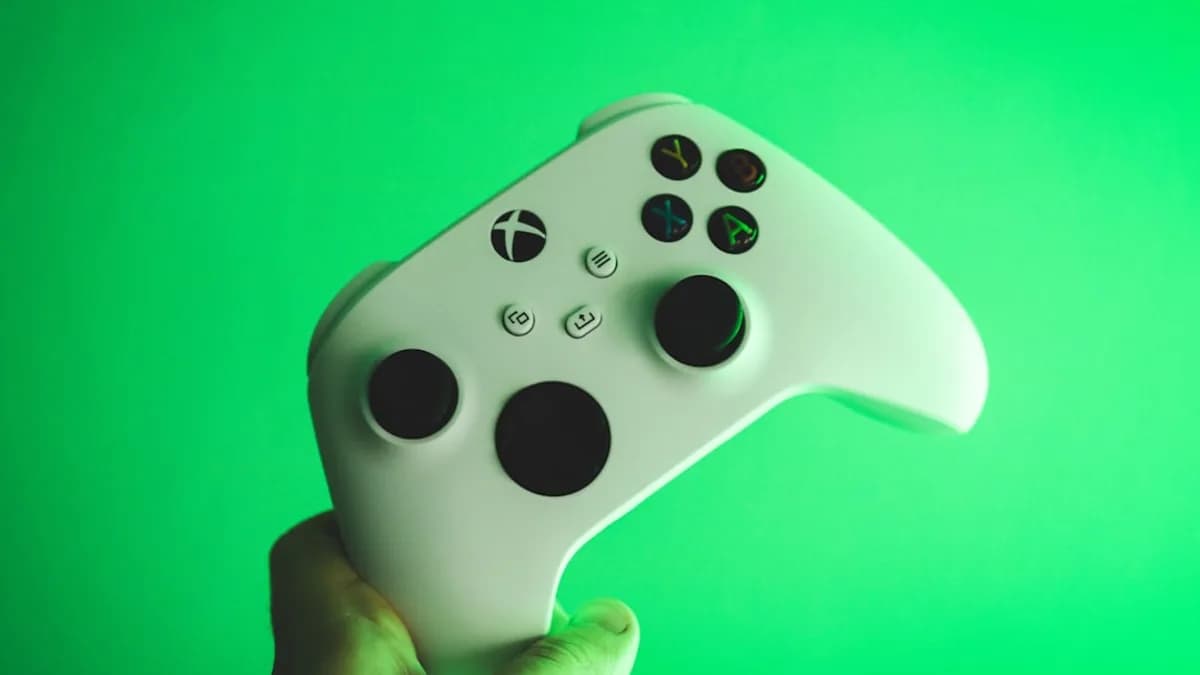
The Gamepad Cursor is essentially a virtual mouse, activated within Xbox mode on Windows 11 handhelds. Unlike traditional mouse controls, which require a physical peripheral, the Gamepad Cursor leverages the left analog stick of compatible controllers—such as the one on the Xbox Ally X—to move a cursor across the screen. This functionality is particularly valuable in situations where handheld devices are used without a mouse, making navigation of Windows apps, menus, and settings far more accessible [Source: Source].
To activate the Gamepad Cursor, users simply need to access the Game Bar while in Xbox mode. This process is designed to be intuitive and doesn’t require third-party utilities or complex configuration. Once enabled, moving the left stick will shift the cursor in any direction, mimicking the precision and responsiveness of a traditional mouse. The cursor’s movement is fine-tuned for accuracy, allowing for both broad navigation and pixel-perfect control—crucial for interacting with menus, buttons, and text fields.
Microsoft’s implementation goes beyond basic movement. The Gamepad Cursor supports scrolling and can be used for tasks that demand more granular navigation, such as dragging files or selecting text. This versatility means users can operate apps that are not designed for controller input (like office suites or web browsers) without reaching for a touchscreen or external mouse.
Moreover, the Gamepad Cursor can be toggled on or off as needed, so users can switch seamlessly between controller mode (for gaming) and cursor mode (for productivity or app navigation). This flexibility is especially important on handheld devices, where space is limited and multitasking is common. By integrating the cursor directly into Xbox mode, Microsoft ensures that the feature is always accessible and optimized for gaming-centric hardware.
Comparison with Existing Solutions like Asus Armory Crate Cursor
Before Microsoft’s Gamepad Cursor, Asus addressed a similar need with its Armory Crate software, which includes its own virtual cursor feature for handheld devices like the ROG Ally. Armory Crate’s cursor allows users to navigate Windows interfaces using the controller, but it’s tied to Asus’ proprietary software suite and requires launching Armory Crate to access or configure the cursor [Source: Source].
Microsoft’s approach differs substantially in terms of integration and user experience. The Gamepad Cursor is built directly into Xbox mode within Windows 11, meaning it’s available natively without the need for third-party applications. This not only streamlines activation but also ensures broader compatibility across various Windows handhelds, not just those manufactured by Asus. Users can quickly enable the cursor from the Game Bar, making the process faster and more intuitive compared to toggling settings within Armory Crate.
Additionally, Microsoft’s solution benefits from deeper system-level integration. Because it’s part of Xbox mode, the Gamepad Cursor can leverage Windows’ accessibility features and maintain consistent behavior across apps and games. This reduces friction and enhances the overall user experience, especially for those who switch frequently between gaming and other tasks. In summary, while Asus pioneered virtual cursor functionality for handhelds, Microsoft’s Gamepad Cursor raises the bar by offering a more universal, user-friendly, and streamlined experience.
Use Cases and Benefits of the Gamepad Cursor
The Gamepad Cursor opens up a range of new possibilities for handheld gaming devices running Windows 11. One of the primary benefits is improved usability for apps that lack controller support. Many productivity tools, web browsers, and system utilities are designed with mouse input in mind, making them cumbersome to navigate using only a gamepad. With the Gamepad Cursor, users can easily interact with these apps, click buttons, select text, and perform drag-and-drop operations—tasks previously reserved for touchscreens or external mice [Source: Source].
This feature is especially valuable in multitasking scenarios, such as when gamers need to adjust settings, browse the web, or manage files without leaving Xbox mode. It enhances the navigation experience, making it possible to transition smoothly between gaming and other activities. For instance, a user playing a game on their handheld device can pause, activate the Gamepad Cursor, and quickly respond to an email or tweak a system setting—all without disconnecting from the controller or reaching for another input device.
Beyond gaming, the Gamepad Cursor has implications for productivity workflows on Windows-based handhelds. Content creators, remote workers, and students who rely on portable devices can now enjoy greater flexibility, as the cursor offers precise control for editing documents, managing spreadsheets, and navigating applications. The ability to use the controller as a mouse also supports accessibility, helping users with limited mobility or those who prefer not to use touchscreens.
Overall, the Gamepad Cursor strengthens the appeal of handheld gaming PCs and consoles by making them more versatile and user-friendly. It reduces the need for additional peripherals, streamlines the user experience, and unlocks new use cases for portable Windows devices, whether for gaming, work, or entertainment.
How to Activate and Use the Gamepad Cursor on Your Device
Activating the Gamepad Cursor on a Windows 11 handheld is straightforward, thanks to its integration with Xbox mode and the Game Bar. Here’s a step-by-step guide:
1. Launch Xbox Mode:
Ensure your device is running Windows 11 and enter Xbox mode. This may involve switching from desktop mode or starting the Xbox interface on your handheld.
2. Open the Game Bar:
Press the designated shortcut on your controller or keyboard to bring up the Game Bar. On most devices, this is achieved by pressing the Xbox button or Windows + G.
3. Enable Gamepad Cursor:
Look for the Gamepad Cursor option within the Game Bar interface. Select it to activate the cursor functionality. Once enabled, the left analog stick will control the cursor.
4. Use the Cursor:
Move the left stick to glide the cursor across the screen. Buttons on the controller can be mapped to mouse clicks, enabling you to select, drag, and interact with UI elements. For scrolling, use the stick or mapped buttons as directed by the device’s settings.
5. Switch Modes Easily:
If you need to revert to regular controller input for gaming, simply toggle the Gamepad Cursor off via the Game Bar. This allows you to transition between navigation and gameplay without interruption.
Tips for Optimization:
- Adjust sensitivity settings if available for smoother cursor control.
- Experiment with mapping controller buttons to mouse clicks for greater efficiency.
- Use the cursor for precise tasks, such as text selection or dragging files.
Troubleshooting Common Issues:
- If the cursor doesn’t activate, ensure you are running the latest updates for Windows 11 and Xbox mode.
- Restart your device if the Game Bar fails to recognize your controller.
- Check compatibility; some handheld devices may require additional driver updates.
By following these steps, users can maximize the benefits of the Gamepad Cursor and enjoy a more flexible navigation experience on their handheld gaming PC or console.
Conclusion: The Future of Controller-Based Navigation on Handhelds
Microsoft’s Gamepad Cursor represents a significant step forward in controller-based navigation for handheld devices. By integrating a virtual mouse directly into Xbox mode, Microsoft has addressed a longstanding challenge for gamers and power users: how to interact with non-controller-friendly apps on portable platforms [Source: Source].
This feature not only enhances usability but also signals a shift towards more versatile input methods on Windows handhelds. As virtual mouse technology continues to evolve, we can expect further refinements—such as improved sensitivity, broader compatibility, and advanced gesture support—to make handheld gaming devices even more capable. Ultimately, the Gamepad Cursor has the potential to influence both the gaming and productivity landscapes, encouraging greater innovation and integration across the device ecosystem. For now, it’s a welcome addition that makes Windows handhelds more accessible, practical, and enjoyable.