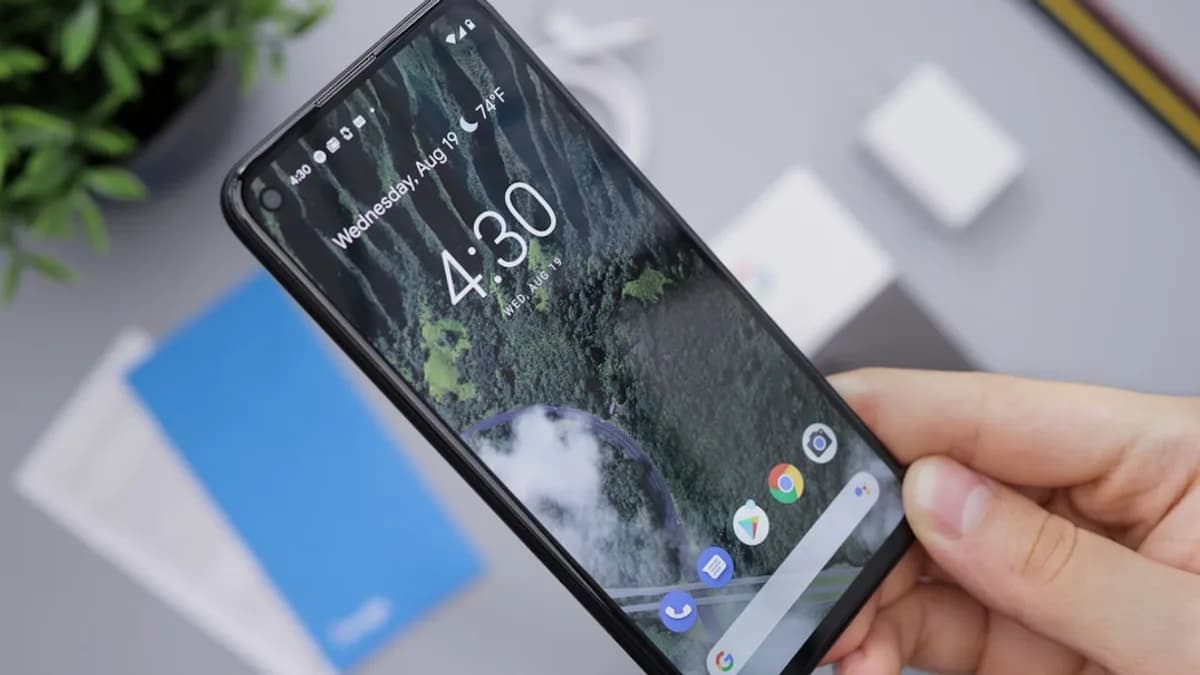
Twenty-one Pixel models can now get Google’s July Android 17 update, and the main prize is simple: stop the repeated restarts that trapped some phones after the March Feature Drop.
The update began rolling out on July 7, according to Notebookcheck, and Google’s changelog lists a fix for the bug that could keep Pixel phones from loading Android or leave them stuck in a boot loop. This guide shows you how to install the update if your Pixel still boots, what to do if it does not, and how to confirm you are on the fixed build.
“Fixed an issue where, under certain conditions, the Android system could fail to load or get stuck in a ‘boot loop’ (repeated restarts) on some devices.”
MLXIO analysis: this is not a cosmetic patch. A phone that cannot pass the Google logo is effectively offline, even if the hardware is fine. The July release matters because it gives users an official recovery path instead of guesswork.
Get your Pixel out of the March Feature Drop bootloop with Google’s July Android 17 update
The bootloop issue began after the March Feature Drop, according to the source material. Affected Pixels could stall on the Google logo, restart again and again, or in some cases become unusable after the user entered a PIN.
The suspected trigger was the Media Provider service, a storage-related Android component. Notebookcheck reports that its crash could block the boot process. Google now lists the repair under the System category in the July changelog.
This guide covers two cases:
- Your Pixel still boots: install the July update through system settings.
- Your Pixel is stuck restarting: use Google’s Pixel Repair Tool with a computer and USB-C cable.
If your issue is broader Android 17 instability rather than a full bootloop, our earlier coverage of the Android 17 Pixel scrolling and screen-freeze bug gives useful context. For patch discipline beyond this one Pixel release, see our Android security patch-check walkthrough.
Before you start: confirm your model and avoid data-risky moves
The July update is rolling out to 21 Pixel devices. The affected range starts with the Pixel 6 generation and runs through the Pixel 10a, including Pro, XL, Fold, and Tablet models.
| Device family | Models listed in the July rollout |
|---|---|
| Pixel 6 | Pixel 6, Pixel 6 Pro, Pixel 6a |
| Pixel 7 | Pixel 7, Pixel 7 Pro, Pixel 7a |
| Pixel 8 | Pixel 8, Pixel 8 Pro, Pixel 8a |
| Pixel 9 | Pixel 9, Pixel 9 Pro, Pixel 9 Pro XL, Pixel 9 Pro Fold, Pixel 9a |
| Pixel 10 | Pixel 10, Pixel 10 Pro, Pixel 10 Pro XL, Pixel 10 Pro Fold, Pixel 10a |
| Other Pixel hardware | Pixel Tablet, Pixel Fold |
Before you do anything invasive, check whether the phone can still stay on long enough to sync or back up important local data. The source material says Google’s Pixel Repair Tool can deliver a rescue OTA “without deleting personal data,” but that does not make every troubleshooting path risk-free.
Watch out for this: do not jump straight to a factory reset unless you have exhausted safer options. The supplied source material does not list factory reset as the official fix for this bootloop.
Step 1: Check whether your Pixel is waiting for the fixed July build
If your phone still reaches Android, start with the basics:
- Open Settings.
- Go to About phone.
- Check Android version, security patch information, and the current build number.
The July fixed build is CP2A.260705.006. After the update, the Android security patch level is listed as July 5, 2026 in the additional source material.
Write down your current build number before troubleshooting. That gives you a clean reference if you later need to contact Google support, a carrier, or a repair provider.
MLXIO analysis: the key divide is not just “Pixel 6 versus Pixel 10.” It is whether the phone can still reach Android. If it can, use the normal update path. If it cannot, skip straight to the recovery option Google provides.
Step 2: Install the July Android 17 update from Pixel system settings
For Pixels that still boot, use the standard update route:
- Open Settings.
- Tap System.
- Select Software updates.
- Choose System update.
- Tap Check for update.
The rollout is staged, so your phone may not see the update immediately on the first day. That delay can depend on model, region, or carrier timing. Do not assume your device is excluded just because the prompt has not appeared yet.
Once the update is available, install it and let the phone complete the process. One or more restart screens during installation can be normal. The bad sign is different: repeated cycling back to the Google logo without reaching Android.
The July changelog also lists fixes beyond the bootloop:
- Apps: certain apps that unexpectedly closed or failed to launch should work again.
- Widgets: system widgets with incorrect colors or contrast settings have been corrected.
- Foldables: navigation button layout problems after folding or unfolding are fixed on Pixel foldables.
- Wallpaper effects: a bug that placed the wallpaper shape effect over the subject instead of behind it has been removed.
Step 3: Do not treat Safe Mode as the official March bootloop fix
Safe Mode can be useful in ordinary Android troubleshooting, especially when a third-party app is involved. But the supplied source material does not identify Safe Mode as Google’s fix for this Pixel bootloop.
That distinction matters. The July changelog points to a System fix, and Notebookcheck reports the suspected issue involved Media Provider, not a specific app you installed. If your Pixel cannot get past the boot animation, Safe Mode may not be reachable anyway.
Use this rule:
- If Android loads: install the July update first, then reassess app crashes if they continue.
- If Android does not load: move to Google’s Pixel Repair Tool rather than experimenting with random recovery actions.
- If only one app fails: update the system first, because the July release also fixes cases where apps closed unexpectedly or failed to launch.
MLXIO analysis: Safe Mode is a diagnostic lane, not the repair Google documented for this issue. The official path is the July OTA for working phones and Pixel Repair Tool for stuck phones.
Step 4: Use Google’s Pixel Repair Tool when the phone cannot reach Android
If your Pixel is already trapped in repeated restarts, you probably cannot install the update from Settings. Google’s answer for that case is the Pixel Repair Tool.
The source material says the process works like this:
- Connect the affected Pixel to a computer via USB-C.
- Use Google’s Pixel Repair Tool.
- The phone receives a rescue OTA.
- The repair is intended to fix the system without deleting personal data.
This is the cleanest route described in the supplied reporting. It also avoids a major risk: using unofficial images or improvised flashing steps when the problem is already at the system-boot level.
Watch out for this: if you are not comfortable with device repair tools, use Google’s support path or a qualified repair provider. Do not download unofficial Pixel system images from random forums. The source material only supports Google’s own repair route.
Step 5: Confirm the July patch actually fixed the bootloop
After the phone boots normally, verify the update instead of assuming it worked.
Check:
- Build number: should show CP2A.260705.006 after the July update.
- Security patch level: listed as July 5, 2026 in the supplied July update details.
- Normal startup: the phone should pass the Google logo and reach Android without repeated restarts.
- Basic app behavior: apps that previously crashed or failed to open should be tested again.
- Foldable behavior: on Pixel Fold models, fold and unfold the device and check whether the navigation bar stays correctly positioned.
Do not confuse installation restarts with the bug. A system update can restart the phone as part of the process. A bootloop means the device keeps returning to the startup logo and never stabilizes.
Step 6: Keep the next Feature Drop from becoming a crisis
The July update is the official repair for this specific Android 17 bootloop, but it also exposes a practical lesson: a major phone update can become a business-continuity problem if the device holds your only copy of key data.
Before the next Feature Drop, make sure your critical data is not trapped on one handset. Confirm that cloud backups, photo sync, messaging backups, and account recovery methods are working while the phone is healthy.
For mission-critical Pixels, MLXIO analysis suggests a cautious update rhythm: read the changelog, check whether early reports mention boot, storage, or app-launch issues, then install when you are comfortable with the risk. That is not a prediction of future Android 17 problems. It is a risk-control habit based on what this March-to-July bootloop episode already showed.
Quick recap: the fastest path to stop Pixel restarts after the July update
Start by confirming your Pixel model and current build. If the phone still boots, install the July Android 17 update through Settings > System > Software updates > System update > Check for update.
If the phone is already stuck restarting, use Google’s Pixel Repair Tool with a USB-C connection to a computer. Afterward, confirm CP2A.260705.006 and watch for stable boot behavior.
The next practical move: update if you can, repair through Google’s tool if you cannot, and make sure your next major Android update starts with your data already protected.
Key Takeaways
- Google’s July Android 17 update fixes a bootloop bug that could stop some Pixel phones from loading Android.
- The issue affected some devices after the March Feature Drop, making phones repeatedly restart or stall on the Google logo.
- Users now have an official recovery path through either system settings or Google’s Pixel Repair Tool.