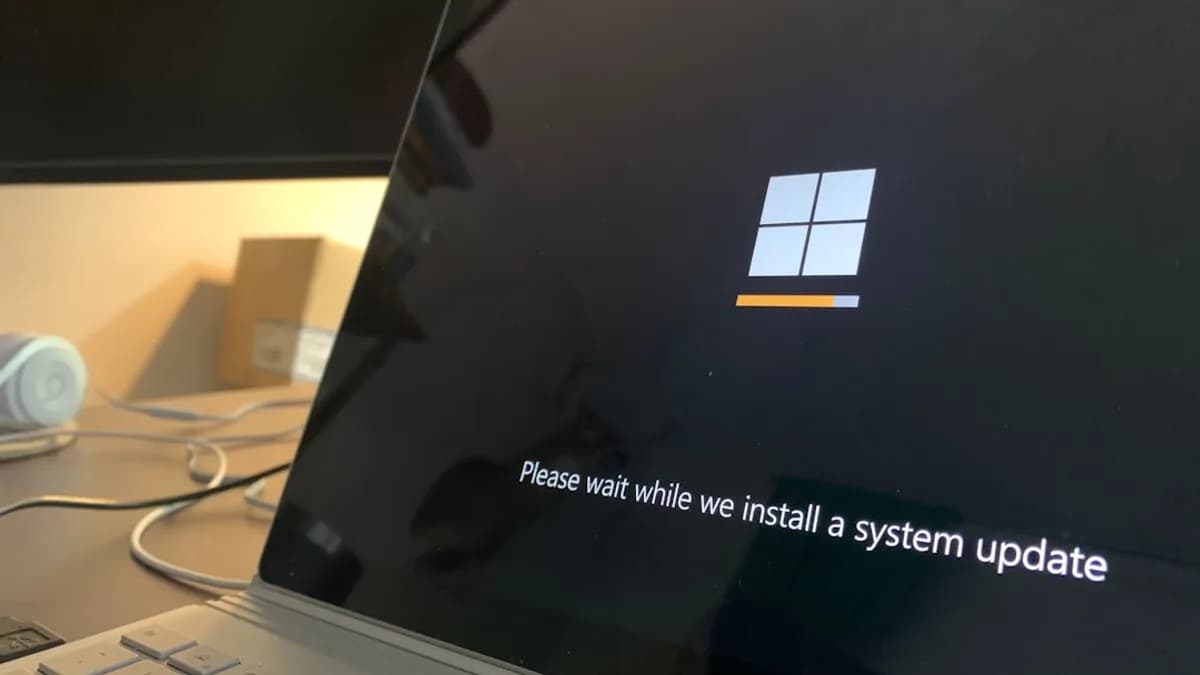
Why Windows 11 KB5083769 Update Is Causing Backup Failures for Users
Microsoft's KB5083769 update for Windows 11 has crippled backup operations for thousands of users, sparking widespread frustration across both home and enterprise environments. Acronis True Image and Macrium Reflect—two of the most trusted backup tools on the market—are failing to run reliably on Windows 11 versions 24H2 and 25H2. The culprit: Microsoft is blocking a critical driver used by these apps, causing backup tasks to fail outright or stall with VSS timeouts, according to Notebookcheck.
This isn’t just a technical nuisance—it’s a direct threat to data protection. Backup failures mean users risk losing everything from personal photos to business-critical files. For companies, backup reliability is a cornerstone of ransomware defense and disaster recovery; a single failed backup can translate into costly downtime or even regulatory trouble. Home users might not notice until they try to restore lost data, only to discover backups never completed.
With Macrium Reflect and Acronis boasting millions of installs globally, the impact is significant. Even users who meticulously schedule their backups are now flying blind, unaware that their safety net has been cut. If you rely on these tools, the KB5083769 update is more than a minor inconvenience—it’s a data risk you can’t afford to ignore.
How the KB5083769 Update Interferes with Backup Drivers Like psmounterex.sys
At the technical core of this disruption lies the psmounterex.sys driver. Both Macrium Reflect and Acronis True Image use this driver to create disk images and manage virtual volumes, allowing them to safely copy in-use files without interrupting the system. The driver acts as a bridge between Windows and the backup software, making sure backups are consistent and complete.
Microsoft’s KB5083769 update has classified psmounterex.sys as incompatible, blocking its loading during backup operations. This isn’t an arbitrary move: Windows kernel updates often tighten driver security to combat malware or system instability. But in this case, the tightening went too far, sweeping up legitimate, widely-used drivers. When psmounterex.sys is blocked, backup software can’t mount virtual disks, leading to failed snapshot operations and, frequently, VSS (Volume Shadow Copy Service) timeouts.
VSS is the mechanism Windows uses to make consistent snapshots of files even while they're being modified. When backup software triggers VSS, it expects a fast, reliable response. If the system can't load the required drivers, VSS times out or throws cryptic errors—resulting in backups that don't complete or restore points that don't exist. On Windows 11 24H2 and 25H2, this problem is acute, as KB5083769 was pushed aggressively to large swaths of the user base, including enterprise deployments and home PCs.
Historically, driver blocks in Windows have hit niche hardware or outdated utilities. This time, the fallout hits major backup vendors, whose users expect bulletproof reliability. The technical rationale—driver security—clashes with the practical need for dependable backups, leaving users caught in the crossfire.
What Users Can Do to Identify If Their Backup Software Is Affected by KB5083769
If you use Macrium Reflect or Acronis True Image, the first step is to confirm whether KB5083769 is installed. Open Windows Update settings and check your update history for “KB5083769”—if it’s listed, your system is at risk.
Symptoms of the issue are clear but easy to overlook: backup jobs fail to start, stall indefinitely, or throw VSS timeout errors. Some users also report seeing “psmounterex.sys blocked” warnings in backup logs. Others notice that scheduled backups simply never complete, with no obvious error.
To dig deeper, inspect your backup logs for error codes related to VSS or missing drivers. Windows Event Viewer can help: under “Application” logs, look for VSS errors or “driver blocked” messages during backup attempts. If your software relies on psmounterex.sys or similar disk-mounting drivers and you see failures after the update, you’re likely affected.
Practical Steps and Workarounds to Fix Backup Failures Caused by the Windows 11 Update
Short-term fixes start with either uninstalling KB5083769 or pausing Windows updates. To roll back, go to Settings > Update & Security > Windows Update > View update history > Uninstall updates, and remove KB5083769. This restores compatibility but leaves your system exposed to any security patches included in the update.
Pausing updates buys time. Set Windows to pause updates for up to 35 days under Windows Update settings. This gives backup software vendors a window to issue patches or Microsoft to revise the update, without risking backup failures.
Updating backup software is the next line of defense. Both Macrium and Acronis have acknowledged the issue; Macrium has released a workaround in their forum and promises a permanent fix in an upcoming patch. Acronis is testing driver updates to bypass the block, though no universal solution is available yet. Check vendor support pages and forums daily for updates.
Microsoft has not yet issued a formal statement or hotfix. Users should monitor Microsoft’s support channels and the backup vendors' release notes for any change.
While troubleshooting, maintain data safety by manually copying critical files to an external drive, cloud storage, or another PC. Don’t assume scheduled backups are working—verify by restoring a test file or checking backup logs. If you use multiple backup solutions, test each independently; some tools may be unaffected or offer workarounds.
For enterprise users, deploy updates in a controlled environment first. Use group policies to block KB5083769 from rolling out company-wide until backup compatibility is confirmed. Document any workarounds used and communicate risks to end users, avoiding silent failures that could jeopardize compliance or recovery readiness.
How This Incident Highlights the Importance of Testing Updates Before Deployment
This episode serves as a pointed reminder: automatic OS updates can wreak havoc on critical software, even from established vendors. Windows has a track record of breaking third-party drivers—2018’s printer driver debacle and the 2021 audio driver fiasco cost businesses millions in downtime and forced rapid-fire patch rollouts.
IT professionals must treat every major update as a potential risk. Testing updates in isolated environments—a practice standard in large enterprises, but often ignored by home users and small businesses—should be non-negotiable. Tools like Windows Update for Business, WSUS, or third-party patch management platforms allow admins to delay and test updates before they hit production systems.
For backup and security tools, the stakes are higher. A failed backup isn’t just an inconvenience—it’s a potential disaster. Companies should maintain a schedule for update testing, backup verification, and restore drills. When an update breaks a widely-used driver, the costs ripple: lost productivity, scrambling for workarounds, and exposure to data loss.
Effective update management means clear communication between OS developers and software vendors. Microsoft, Macrium, and Acronis need to coordinate on compatibility testing, publish pre-update advisories, and offer rapid-response patches. Users should demand transparency—if a driver block is coming, vendors owe their customers advanced warning and clear instructions.
This isn’t a one-off. As Windows 11 continues to evolve, more AI-driven security and compatibility checks will likely mean stricter driver enforcement. The lesson: never assume your backup solution is safe after a major OS update. Test, verify, and stay alert.
What to Watch for Next: Staying Ahead of Backup and Update Risks
Expect backup vendors to accelerate patch releases and compatibility testing as Windows 11 matures. Microsoft will face mounting pressure to clarify its driver-blocking criteria and offer granular controls to IT admins. Users should prioritize update transparency—subscribe to vendor alerts, monitor system logs, and verify backups after every major patch.
For now, treat every Windows update as a possible disruption. Before deploying KB5083769 or any future update, confirm backup software compatibility. If you manage IT for a business, enforce a staged rollout and document every incident. For individuals, don’t trust scheduled backups blindly—run spot checks and keep manual copies of irreplaceable files.
The KB5083769 debacle spotlights a fundamental truth: reliable backups depend not just on software, but on the OS beneath. Vigilance and proactive testing are your best defense—against both malware and Microsoft’s next surprise update.
Impact Analysis
- Backup failures expose users to data loss risks, from personal files to business-critical information.
- Reliability of backup tools is essential for ransomware defense and disaster recovery in both home and enterprise settings.
- Millions of users relying on Acronis and Macrium are affected, highlighting the widespread impact of the Windows update.