Updated: This article has been refreshed to clarify that Mechanism’s Basegrip is designed around Valve’s latest Steam Controller, not the discontinued 2015 model, and to remove overly specific setup claims that may vary by phone, case, region, or controller bundle.
Introduction to the Steam Controller and Mechanism’s Basegrip Accessory
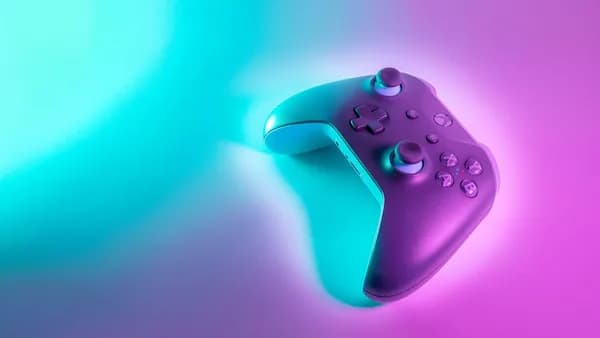
Valve’s latest Steam Controller is arriving as a $99 companion for PC gaming, Steam Link, and the broader Steam ecosystem. But for many players, the bigger story is not just the controller itself — it’s what accessory makers are already building around it.
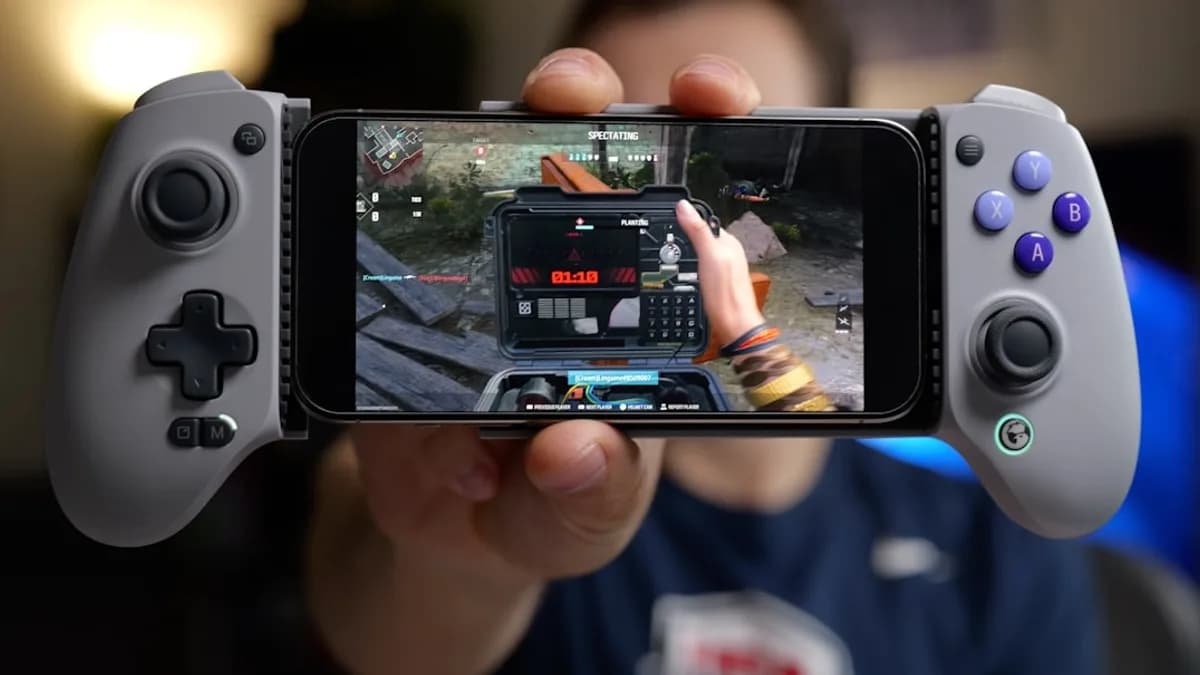
Mechanism, the company behind modular gaming accessories such as Deckmate-style mounts and storage add-ons, has introduced a Basegrip accessory that lets you attach the new Steam Controller to your phone. The idea is simple: instead of propping your phone on a table or holding it separately while streaming games, the Basegrip turns the phone and controller into a more handheld-like setup. It is aimed at players who use Steam Link, cloud gaming apps, or remote desktop tools to play PC games on a mobile screen. [Source: The Verge]
That distinction matters. This is not a way to run high-end PC games natively on your phone. Your PC, Steam Deck, or cloud service is still doing the heavy lifting. The phone is the display, while the Steam Controller handles input. What Mechanism adds is a cleaner, more portable physical setup.
Mechanism also sells mounts for desks, walls, pegboards, and handhelds, including accessories designed for Ikea’s popular Skadis pegboard system. But the Basegrip is the standout here because it gives Valve’s new controller a phone-mounted use case from day one.
Unboxing and Preparing Your Steam Controller and Basegrip
The exact contents of the Steam Controller box may vary by region and retailer, so check Valve’s latest listing or your retailer’s product page before buying. In general, you should expect the controller, charging or connection hardware, and basic setup instructions. Depending on the package, wireless connection options may include Bluetooth, a USB receiver, or a wired USB-C connection.
Before attaching anything, charge the controller and update its firmware if Steam prompts you to do so. That is especially important for new hardware, because early updates often improve pairing, wireless stability, and controller-profile support.
The Basegrip comes as a separate accessory. It is designed to attach to the back of the Steam Controller and provide a mounting point for Mechanism’s phone holder or other compatible parts. Before installing it, make sure you have the correct Basegrip model for Valve’s newer Steam Controller. Accessories made for the original discontinued Steam Controller, Steam Deck, ROG Ally, or other handhelds may not fit.
To install it, line up the Basegrip with the back of the controller and press it into place according to Mechanism’s instructions. It should feel secure without requiring excessive force. If it does not sit flush, stop and check the alignment rather than pushing harder. A loose or poorly seated mount can make the phone wobble, and a forced installation could damage the controller shell or the accessory.
Once attached, gently test the grip for movement. If your version uses screws, clips, or a locking mechanism, make sure they are fully tightened. Keep the contact points clean and free of dust, oil, or adhesive residue so the mount stays stable over time.
Step-by-Step Guide to Mounting the Steam Controller on Your Phone
Mechanism’s phone mount is designed to work with the Basegrip system, creating a clamp-style holder above the controller. It should fit many modern phones, including recent iPhone, Samsung Galaxy, and Google Pixel models, but the exact fit depends on phone size, case thickness, camera bump, and mount version.
Here’s a safe setup process:
- Attach the Basegrip securely to the Steam Controller.
- Open the phone clamp or slide mount.
- Place your phone in the holder with the screen facing you.
- Center the phone so the weight is balanced over the controller.
- Tighten the mount until the phone is secure, but do not overtighten it.
- Adjust the viewing angle so the screen is comfortable for your wrists and neck.
- Test all buttons, sticks, triggers, and touch surfaces before launching a game.
If your phone has a bulky case, wallet case, pop socket, or large camera protection ring, you may need to remove it. Thin cases are more likely to work, but always check Mechanism’s compatibility guidance before assuming a perfect fit.
Balance is also important. A large phone can make the controller feel top-heavy, especially during longer play sessions. If the setup feels awkward, try lowering the phone angle or resting your hands on a table, pillow, or lap. The goal is to get the convenience of a handheld without adding too much strain.
Once mounted, the setup gives you something close to a dedicated handheld experience: the controller in your hands, the screen attached, and your PC games streamed directly to the phone.
Configuring Your Setup for Remote PC Gaming
After the hardware is assembled, you need to connect the Steam Controller and phone to your gaming source.
For Steam users, the simplest path is usually Steam Link. Download the Steam Link app from the App Store or Google Play, sign in with your Steam account, and make sure your phone and gaming PC are on the same network for the first setup. Steam Link will scan for available PCs and walk you through pairing.
For the best experience, connect your PC to your router with ethernet if possible. On the phone side, use a strong 5GHz or Wi-Fi 6/6E connection. Remote play is sensitive to network quality, so a fast internet plan does not automatically guarantee smooth streaming if your home Wi-Fi is crowded or weak.
You can usually connect the Steam Controller in one of three ways, depending on Valve’s supported options and your device:
- Bluetooth directly to your phone or PC
- A USB receiver connected to your PC
- A wired USB-C connection where supported
If you are using Steam Link, the controller may be paired with the phone or with the host PC, depending on your preferred setup. If input feels delayed, try a different connection method. A dedicated receiver or wired connection may reduce latency compared with Bluetooth, though Bluetooth is often more convenient.
If you notice lag, stuttering, or blurry video, try these fixes:
- Move closer to the router.
- Use 5GHz or Wi-Fi 6 instead of 2.4GHz.
- Connect the gaming PC by ethernet.
- Lower the Steam Link streaming resolution or bitrate.
- Close downloads, video calls, and other heavy network activity.
- Restart Steam, the Steam Link app, and the controller.
You can also use other services or apps, such as Moonlight, GeForce Now, Xbox Cloud Gaming, or Parsec, depending on controller compatibility. Steam Link remains the most natural fit for Steam Controller users because it ties directly into Steam Input and controller profiles.
If buttons do not behave correctly, open Steam’s controller settings and check the game’s layout. Some games work best with a standard gamepad profile, while others benefit from community layouts or custom mappings.
Exploring Additional Uses and Mounting Options with Mechanism Accessories
The Basegrip is part of Mechanism’s broader modular accessory approach. The company’s mounts are designed to let players attach, store, and organize gaming hardware in different ways rather than buying a single-purpose clip for every device.
That includes mounts for Ikea Skadis pegboards, desk setups, shelves, and other storage points. If you already use a pegboard for keyboards, controllers, cables, or handhelds, Mechanism’s accessories can help keep the Steam Controller and phone mount nearby when not in use.
This is useful for small spaces. Instead of leaving controllers, cables, and clamps scattered across a desk, you can hang them on a wall, attach them under a shelf, or create a charging area near your gaming PC. It also makes it easier to switch between setups: phone streaming, desktop play, TV gaming, or handheld-style sessions.
The modular design is the main appeal. If you add a new phone, controller, or handheld later, you may not need to rebuild the whole setup. You can often swap one mount or adapter while keeping the rest of the system in place.
As always, check weight limits and installation instructions, especially for adhesive mounts. A controller falling off a wall is annoying; a phone falling with it is worse.
Conclusion: Enhancing Mobile Gaming with the Steam Controller and Basegrip
Mechanism’s Basegrip gives Valve’s new Steam Controller a practical mobile angle. By snapping a phone mount onto the controller, it turns Steam Link and other streaming apps into a more comfortable handheld-style experience.
It will not replace a dedicated handheld PC for everyone. You still need a good network, a host PC or streaming service, and a phone with enough battery life for longer sessions. But for players who already stream PC games around the house, the Basegrip could make the setup cleaner, more comfortable, and easier to use.
Mechanism’s wider mount ecosystem also adds value for anyone who likes tidy gaming spaces. The same accessory approach can help organize controllers, handhelds, cables, and charging gear when they are not in use.
For Steam players, the appeal is flexibility. The best gaming setup is not always a desk, a TV, or a dedicated handheld — sometimes it is the device already in your pocket, snapped onto the controller you were going to use anyway. [Source: The Verge]
Why It Matters
- The Basegrip gives Valve’s new Steam Controller a phone-mounted option for Steam Link, cloud gaming, and remote PC play.
- It helps bridge the gap between traditional controllers and handheld-style mobile gaming without requiring a separate handheld PC.
- Mechanism’s modular accessory system reflects a growing demand for flexible gaming setups that move between desks, couches, phones, TVs, and wall-mounted storage.