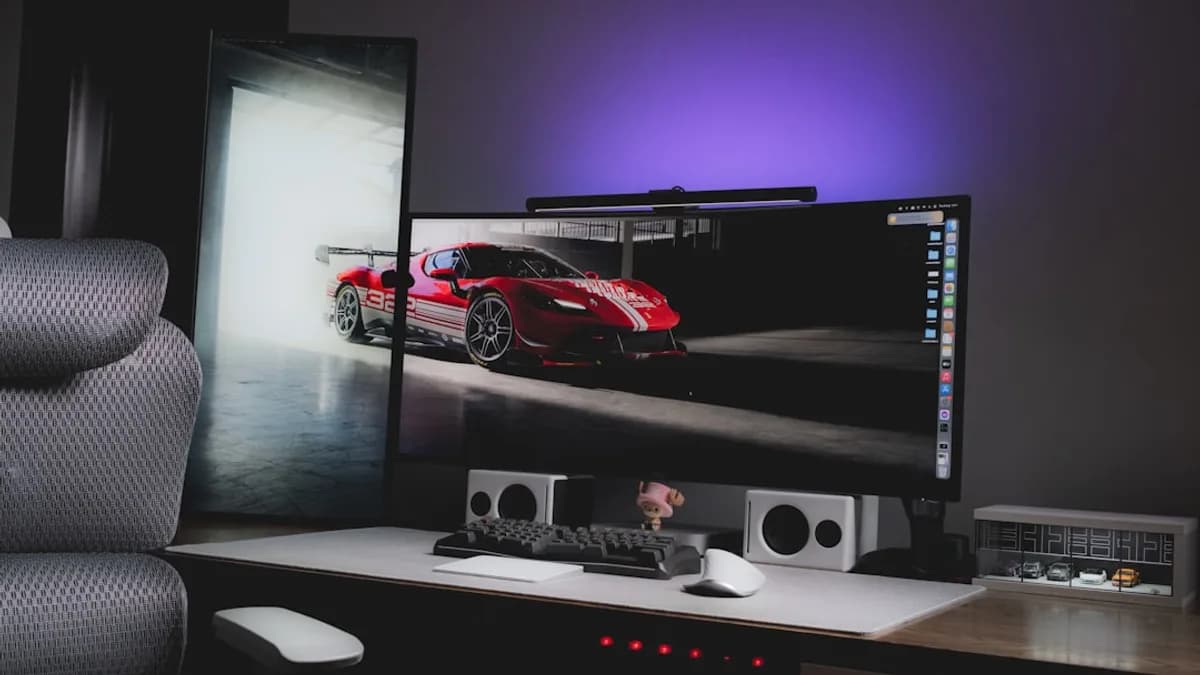
Introduction to Alienware’s Affordable OLED Gaming Monitor
Alienware’s new AW2726DM QD-OLED gaming monitor costs just $350 and packs features usually found in screens twice the price. OLED monitors are hot right now because they show richer colors, deeper blacks, and super-fast response times. Gamers love them for the way they make games pop and help spot enemies in dark corners. Until recently, most OLED monitors were pricey, with similar models costing $800 or more.
Alienware changed that with the AW2726DM. This monitor offers a 27-inch QD-OLED screen, sharp 1440p resolution, a blazing 240Hz refresh rate, and a semi-glossy coating that makes details stand out. It skips flashy RGB lights and sticks to sleek, simple looks. The monitor also comes with a three-year warranty, which covers burn-in—one of the biggest worries for OLED buyers [Source: The Verge].
This low price means you don’t have to be a pro gamer to get a top-tier screen. It’s even cheap enough that some people might buy two for a dual-monitor setup. Let’s dig into what you get, how to set it up, and whether it’s the right choice for your desk.
Unboxing and Initial Setup of the Alienware AW2726DM
When you open the Alienware AW2726DM box, you’ll find the monitor itself, a sturdy stand, power cable, DisplayPort and HDMI cables, and a quick-start guide. The packaging is tidy and keeps the screen safe. The monitor is lighter than many older gaming monitors, and the slim design means it fits easily on most desks.
Setting it up is straightforward. First, snap the stand into the back of the monitor. Alienware uses a tool-free design, so you don’t need a screwdriver. The stand lets you tilt, swivel, and adjust the height, which helps you find the most comfortable angle.
Next, plug the power cable into the monitor and connect it to your PC or gaming console. If you want the highest refresh rate, use the DisplayPort cable. HDMI works too, but some PCs or consoles might limit the refresh rate.
Turn on the monitor and follow the on-screen prompts. Windows or your console will detect it automatically. If you’re using two monitors, connect the second one the same way, and your system should see both.
The monitor’s controls are easy to find. There’s a joystick on the back, which lets you adjust settings like brightness and color. Alienware’s menus are clear and simple, so you won’t get lost.
With everything connected, you’re ready to start tweaking settings for the best picture.
Optimizing Display Settings for the Best Visual Experience
OLED screens show colors differently than old LCD monitors. To get the most out of the AW2726DM, start by adjusting brightness. OLEDs can look stunning in dark rooms, but you might want to lower brightness to avoid eye strain.
Contrast is where OLED shines. The AW2726DM’s QD-OLED panel creates sharp contrast between bright and dark areas. Set contrast to the default first, then tweak it up or down depending on your room’s lighting.
Color calibration is important. The monitor comes tuned for gaming, but you can change color temperature if you want more natural whites or cooler blues. Alienware’s settings let you pick between presets or fine-tune red, green, and blue levels. Use a color calibration tool for best results, or try online guides if you don’t have one.
The semi-glossy screen coating helps details pop, especially in games with lots of dark scenes. Unlike glossy screens, it cuts glare from windows and lamps, but it still shows sharp reflections. If your room is bright, angle the monitor to avoid direct light.
To unlock the full 240Hz refresh rate, make sure Windows or your game console is set to output at 240Hz. You’ll find this setting under Display options. High refresh rates make games feel smoother and help you react faster, especially in shooters and racing games.
For everyday use, you can lower the refresh rate to save power or reduce heat, since OLED panels can get warm at high settings.
If you want to test how your games look, try popular titles like “Cyberpunk 2077” or “Fortnite.” Fast-moving games will really show off the smooth motion and vivid colors.
Enhancing Your Gaming Setup with Dual Monitor Configuration
At $350 each, buying two AW2726DM monitors for a dual setup isn’t just possible—it makes sense for gamers, streamers, and anyone who needs more screen space. With two monitors side by side, you can play games on one and keep chat, guides, or work apps open on the other.
To set up dual monitors, place them close together and adjust the stands so the screens line up. If you want an even cleaner look, use a dual monitor arm. This saves space and makes it easy to move each screen.
Connect both monitors to your PC’s graphics card. Most gaming PCs have at least two DisplayPort or HDMI ports. Once plugged in, Windows lets you pick how the screens work. You can extend your desktop across both monitors, mirror the same image, or set one as your main display.
Gaming with two screens is handy for strategy games, where maps and stats can stay open on the second monitor. For streamers, dual monitors make it simple to watch chat or edit video while playing.
There are free apps like DisplayFusion or Windows’ built-in settings to manage wallpapers, window snapping, and shortcuts across two screens. This helps keep your workspace tidy and maximizes your productivity.
Maintaining Your OLED Monitor to Prevent Burn-In and Extend Lifespan
OLED burn-in happens when the same picture stays on the screen for too long, leaving a faint “ghost” image. Alienware’s three-year warranty covers burn-in, giving peace of mind if you use the screen for hours every day [Source: The Verge]. But it’s still smart to follow best practices.
To prevent burn-in, avoid leaving static images or bright logos on the screen for hours. Use screen savers or the monitor’s built-in “pixel refresh” feature. This runs short cycles to help fix stuck pixels and keep the panel healthy.
For power management, set your PC or console to turn off the monitor after 10-15 minutes of no use. This saves energy and cuts down on heat, which can shorten OLED lifespan.
Clean the semi-glossy screen with a soft microfiber cloth. Don’t use harsh cleaners or spray directly on the screen. A little distilled water on the cloth works fine for fingerprints or dust.
Keep the monitor out of direct sunlight and avoid high humidity, which can damage OLED panels over time. If you see odd colors or lines, try the monitor’s “pixel cleaning” tool before calling support.
Alienware’s warranty is a big plus, but regular care keeps your monitor looking sharp and working longer.
Analyzing the Value and Performance of the AW2726DM in Today’s Market
Alienware’s AW2726DM stands out because it brings high-end OLED features to a price most gamers can afford. Other OLED monitors, like the LG UltraGear 27GR95QE or Asus ROG Swift OLED, often cost $800 or more. Those models offer similar specs—27-inch screens, 1440p resolution, and fast refresh rates—but Alienware matches them for less than half the price.
The QD-OLED panel is a big deal. Quantum Dot tech helps colors look brighter and more accurate than standard OLED, especially reds and greens. Combined with 1440p resolution, games and movies look crisp and lifelike.
The 240Hz refresh rate is more than most monitors offer. For fast-paced games, this means smoother motion and less blur. Competitive gamers will notice the difference, but even casual players get a better experience.
Alienware’s “no-frills” design is a bonus. Many gaming monitors have bright LED lights and chunky frames, but the AW2726DM is slim and subtle. This helps it fit in both gaming setups and work-from-home offices.
The warranty is rare for OLED. Burn-in worries keep many buyers away from OLED, but Alienware’s three-year coverage makes it safer to try.
For anyone upgrading from an older LCD or VA panel, the AW2726DM is a big jump in quality. If you’re a gamer, streamer, or someone who spends hours at the screen, the price and features make this monitor a smart buy.
Conclusion: Is Alienware’s $350 OLED Monitor the Right Choice for You?
Alienware’s AW2726DM packs OLED tech, fast refresh rates, and solid build quality into a $350 package. It’s bright, sharp, and smooth, and the three-year warranty helps ease worries about burn-in [Source: The Verge]. The monitor skips flashy extras and focuses on what matters—great picture and strong performance.
The price lets more people try OLED, and it’s cheap enough for dual-monitor setups. The only drawbacks are the risk of burn-in and the need to handle the screen with care.
If you want a better gaming experience, richer colors, and smoother motion, this monitor delivers. It’s a simple way to upgrade your desk and see what OLED is all about. As prices drop and more brands follow Alienware’s lead, OLED will become the new standard for gamers and anyone who wants sharper, more vivid screens. Try one, and you’ll see the difference right away.
Why It Matters
- Alienware is making high-end OLED gaming monitors affordable for a wider audience.
- A lower price enables more gamers to experience premium display features like deep blacks and fast response times.
- The three-year burn-in warranty addresses a common OLED concern, increasing buyer confidence.