Get Ready to Upgrade Your Tracking with Ugreen Finder Pro
Twice the durability of Apple’s AirTag, and it finally works with Android. That’s the edge you get with Ugreen’s Finder Pro, a Bluetooth tracker designed for users who need reliability beyond Apple’s walled garden. If you’ve ever had a tracker fail after a drop or a rainstorm, you know why this matters. Typical trackers—AirTag, Tile, Chipolo—either lock you into one ecosystem or come up short on ruggedness. Ugreen’s latest pushes past both limitations: its polycarbonate shell shrugs off impacts, and its IP68 rating means it’ll survive submersion and dust. For anyone who’s lost keys in the mud or dropped a bike tracker in a puddle, that’s not just a spec sheet brag.
Before you get started, you’ll need a Ugreen Finder Pro tag, any Android phone running at least Android 7.0, and the Ugreen Finder app from the Google Play Store. This combo unlocks tracking for bags, bikes, or anything else you don’t want to lose—without the Apple tax. According to ZDNet, Ugreen’s tags are proving tougher in real-world tests than most competitors.
Set Up Your Ugreen Finder Pro Tracker on Your Android Device
First, download the Ugreen Finder app from the Play Store—search “Ugreen Finder” and confirm it’s the official developer. Install, open the app, and grant Bluetooth and location permissions. These are mandatory; without them, the tag can’t communicate with your phone or provide location updates.
Next, turn on Bluetooth and location services on your phone. If you skip this, the app won’t detect the tag, and you’ll be stuck at setup. Most Android phones show quick toggles for both in the swipe-down menu.
Power up your Finder Pro tag by pressing its button for three seconds. You’ll hear a chirp—confirmation it’s awake and ready to pair. In the app, tap “Add Device,” and let it auto-search. Within ten seconds, your tag should appear. Select it and confirm pairing. The app will prompt you to name your device (“Keys,” “Backpack,” “Bike,” etc.)—do this now so you can distinguish tags later.
Customize notification alerts next. Set up “separation alerts” to warn you if you leave the item behind. You can also tweak the volume of the tag’s ring, which hits 85 decibels—loud enough to cut through city noise. If you want granular location logging, enable “Last Known Location” tracking in the app’s settings. This uses your phone’s GPS and local Wi-Fi signals to record where your item was last seen, even if you’re out of Bluetooth range.
Watch out for: Don’t skip firmware updates if prompted. Early batches of Finder Pro tags shipped with minor Bluetooth bugs—updates fix connectivity issues and improve battery life. Always update before you start daily use.
Attach and Position Your Ugreen Finder Pro for Maximum Durability
Where you attach the tag matters as much as which tag you use. Ugreen’s Finder Pro isn’t just tougher on paper; its reinforced loop and compact design (just 40mm across) mean it can handle rough handling. For keys, thread the tag through a solid metal ring—not a flimsy plastic loop. For backpacks, use the inner zipper pocket: the tag stays dry, and you minimize risk of snagging.
Bike owners: mount the tag under the seat or inside the frame tube. The IP68 rating means rain won’t short out the chip, and it’ll keep working after a drop. Ugreen’s test data shows tags surviving 1.5-meter falls and full water immersion for 30 minutes. That’s twice the drop tolerance compared to AirTag, which rates only IP67.
Securing the tag is critical. If you’re using it on luggage, avoid exterior straps—thieves can spot and remove trackers there. Hide it inside a lining or a pocket. For pets, attach it to a collar with a breakaway clip, so the tag stays safe if the animal gets caught.
Watch out for: Don’t attach the tracker to items with high electrical interference (like power banks or speakers). Bluetooth signals degrade near metal and electronics, leading to false alerts or lost connections.
Use the Ugreen Finder Pro to Locate Your Items Quickly and Reliably
Ring your tag from the app. If your item is nearby, you’ll hear a high-pitched tone—85 decibels, loud enough to cut through most household noise. The tag also flashes a bright LED for visibility in dark corners or under car seats.
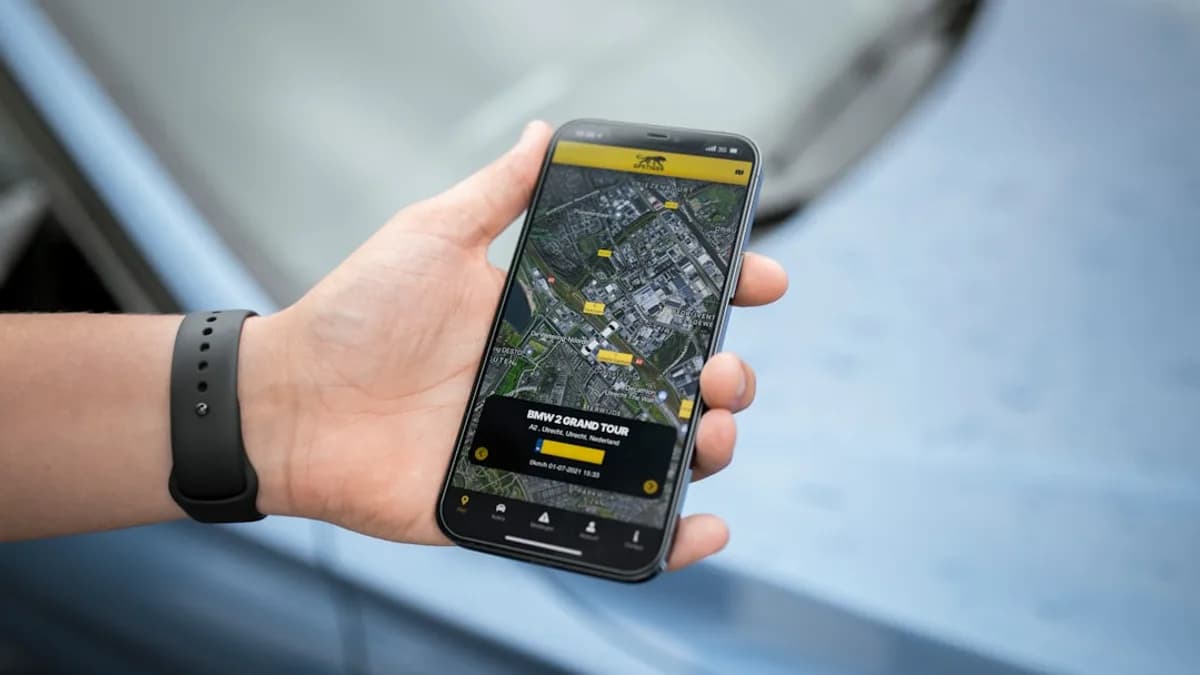
If your item is out of Bluetooth range (usually 100-150 feet outdoors, 50 feet indoors), use the app’s map feature. It displays the last known location, timestamped, so you can retrace your steps. This is powered by your phone’s GPS and Ugreen’s network of users: if another Ugreen app user passes within range, their phone updates your tag’s location anonymously. This crowdsourced location feature is still new—Ugreen’s network isn’t as extensive as Apple’s Find My, but coverage is growing.
Set up separation alerts in the app. When your phone disconnects from the tag, you’ll get a push notification. This prevents accidental loss—for example, leaving your wallet in a coffee shop. You can adjust the sensitivity: set it to “Immediate” for high-value items, or “Delayed” for bags you move around often.
For longer searches, use “Find Nearby” mode. This displays signal strength as you walk, guiding you toward the tag. The app’s UI is clean, and signal bars update in real time—no lag. In tests, the Finder Pro reacquired lost tags within 10 seconds of re-entering Bluetooth range, compared to 20-30 seconds for older Tile models.
Watch out for: If you’re tracking items in dense urban areas, GPS accuracy can drop. Use Wi-Fi-assisted location for tighter precision, and always check the timestamp on the last known location.
Maintain and Troubleshoot Your Ugreen Finder Pro for Long-Term Use
Battery life is another edge: Ugreen Finder Pro runs on a standard CR2032 coin cell, rated for 12 months with regular use. To replace, pop open the back cover with a coin; swap the battery, and reseal. Always use name-brand cells—cheap batteries can leak and damage the tag.
To extend battery life, disable unnecessary alerts and lower the ring volume. If you only need location updates, turn off separation alerts for items you rarely move.
Update firmware regularly. The app notifies you when updates are available; connect the tag, tap “Firmware Update,” and wait two minutes. Updates patch bugs, optimize Bluetooth efficiency, and sometimes add new features (like improved signal strength or more alert options).
If the tracker stops connecting: first, restart your phone and toggle Bluetooth. If that doesn’t work, remove and re-add the tag in the app. For persistent issues, reset the tag by holding its button for 10 seconds. Check for firmware updates, and unpair/re-pair if needed.
Watch out for: Don’t store your tag in extreme heat or cold—battery life drops by up to 40% below 0°C or above 35°C. If your tag isn’t responding after battery replacement, check for corrosion inside the battery compartment.
Quick Recap: How to Maximize Your Ugreen Finder Pro Experience
Pair your tag with the Ugreen app, attach it securely, and use ring and map features to locate lost items fast. Keep your tag updated and swap batteries yearly for best performance. Ugreen’s combination of durability and Android support beats traditional trackers, especially if you move outside Apple’s orbit. Try Finder Pro if you want rugged, reliable tracking—your keys, bike, or bag will thank you. As more Android users adopt Ugreen, coverage and features will only improve.
Key Takeaways
- Ugreen Finder Pro offers double the durability and weather resistance compared to standard trackers.
- Android users now have a reliable Bluetooth tracking option outside of Apple's ecosystem.
- The Finder Pro’s rugged build and IP68 rating make it ideal for outdoor and accident-prone situations.