Get Ready to Personalize Your iPhone with iOS 26’s 3D Spatial Wallpapers
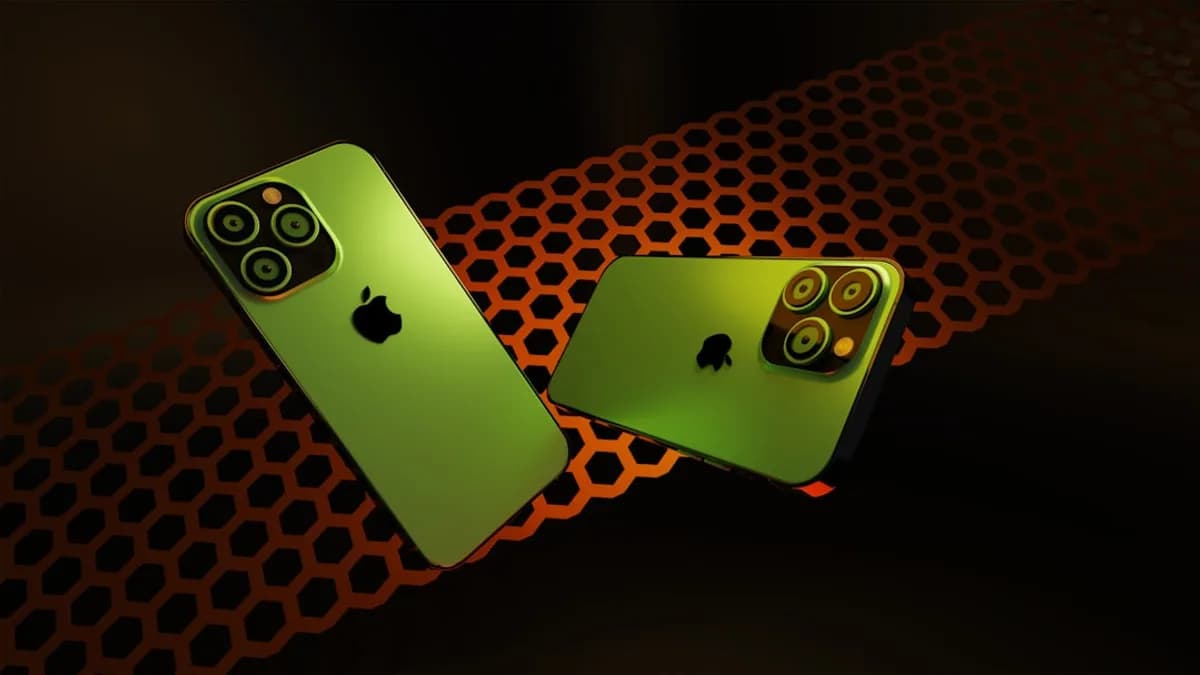
Apple has raised the bar for iPhone customization with 3D spatial wallpapers in iOS 26, giving users a new way to make their devices stand out. If your iPhone is running iOS 26 or later, you can tap into this feature right now. The catch: you need the latest update installed, as these wallpapers arrived with the initial release of iOS 26. According to 9to5Mac, this is not just another batch of backgrounds. Apple’s 3D spatial wallpapers bring a sense of depth and dynamism that wasn’t available in earlier versions.
Why does this matter? For users who want their home screen to feel fresh and alive, spatial wallpapers offer a new dimension—literally. The feature signals Apple’s push to make iOS visually richer, not just functional.
Access the Wallpaper Settings to Start Customizing Your iPhone Background
Once your device is on iOS 26, head to the Settings app and tap “Wallpaper.” This is where Apple groups all available wallpaper options, including the new 3D spatial category. From here, you can access the wallpaper gallery and see what’s new. iOS 26 introduces this 3D spatial experience as a distinct option, making it easy to spot and try out.
Why is this step important? If you’re used to the old static or even live wallpapers, you’ll notice the 3D spatial category stands apart. The interface prompts you to preview and select options directly, streamlining the process for experimentation.
Choose and Apply 3D Spatial Wallpapers for an Engaging Visual Effect
With the wallpaper gallery open, browse the set of 3D spatial wallpapers included in iOS 26. Each one is designed to showcase the new depth effect. According to 9to5Mac, these wallpapers were a highlight from the very first iOS 26.0 release, so you’re seeing Apple’s flagship visual update in action.
To apply a 3D spatial wallpaper:
- Tap on your preferred spatial wallpaper in the gallery.
- Preview it to see the depth effect (Apple’s UI typically lets you interact with new wallpapers before applying them).
- Set the wallpaper for your Lock Screen, Home Screen, or both—just as you would with any other iOS wallpaper.
What’s different here is the sense of visual motion and depth, which goes beyond flat images or simple animation loops.
Analysis: Apple’s inclusion of spatial wallpapers in the main release, not as a later add-on, suggests they see this as a core part of the iOS 26 experience. If you care about making your device visually unique, this is the most significant wallpaper update in years.
Customize Your Own 3D Spatial Wallpaper Using Personal Photos
Here’s where things get less clear. The source praises the 3D spatial wallpapers and highlights their appeal, but does not confirm whether users can create their own spatial wallpapers from personal photos or just use Apple’s presets.
What We Know: Apple includes 3D spatial wallpapers as part of the iOS 26 default selection. The process for applying them is as streamlined as with other wallpapers.
What Is Still Unclear: There’s no direct evidence in the source that iOS 26 lets users turn their own photos into spatial wallpapers or that editing tools exist for adding depth to personal images. If you’re hoping to create truly personalized 3D effects, this may not be possible—at least, not yet.
What To Watch: Future updates or announcements from Apple could bring more customization power into users’ hands. For now, you’re limited to the selection Apple provides.
Optimize Your iPhone Settings to Maximize 3D Spatial Wallpaper Performance
There’s no mention in the source of required tweaks or troubleshooting for 3D spatial wallpapers. Still, some users may wonder if motion settings or battery usage are affected.
Analysis: Since Apple introduced spatial wallpapers as a default feature in iOS 26, it’s reasonable to infer that they’re optimized for normal use. If there were major issues with lag or battery drain, these likely would have surfaced in early reviews or the 9to5Mac coverage. That said, users who notice performance hiccups should check for iOS updates, as Apple often refines new features post-launch.
What Remains Unclear: There’s no detailed information on how spatial wallpapers might interact with settings like “Reduce Motion” or power-saving modes.
What To Watch: If Apple adds more customization, expect the settings panel to evolve. For now, spatial wallpapers are designed to work out of the box without special tuning.
Quick Recap: How to Transform Your iPhone’s Look with 3D Spatial Wallpapers in iOS 26
iOS 26’s 3D spatial wallpapers offer an instant way to refresh your iPhone’s home or lock screen. Here’s the process: update to iOS 26, open Settings > Wallpaper, choose from Apple’s spatial wallpaper options, and set your favorite. The result is a more dynamic, personalized device, with minimal effort required.
The bottom line: Apple has made visual customization a headline feature in iOS 26, but the extent of personalization—especially with your own photos—remains limited based on current reports. For now, experimenting with Apple’s own spatial wallpapers is the best way to see what’s possible, and to preview what could become an even richer feature in future iOS updates.
Key Takeaways
- iOS 26 introduces 3D spatial wallpapers, offering users a visually richer customization option.
- The new feature makes it easy for iPhone owners to personalize their home screen with depth and dynamism.
- Apple's addition signals ongoing innovation in iOS design and user experience.