Setting up a secure remote developer workspace is now a foundational skill for any software engineer working in 2026. With remote and hybrid teams common across the tech landscape, protecting your code, credentials, and development environments is not just best practice—it's mission critical. This comprehensive guide explores each step, from hardware selection to regular audits, grounded in real-world recommendations and platform-specific instructions. Whether you’re setting up your first remote workspace or refining an existing one, this tutorial will help you put security and productivity first.
Why Security Matters for Remote Developers
The concept of “secure” in a developer context means ensuring your workspace is free from danger or threat (as defined by usdictionary.com). In practice, this means preventing unauthorized access to code, credentials, and development infrastructure—because a compromise could lead to:
- Unauthorized access to source code
- Malicious code injection
- Exposure of credentials
- Supply chain attacks
“A compromised developer workspace can lead to unauthorized access to source code, injection of malicious code, exposure of credentials, and supply chain attacks that affect downstream systems and users.”
— [Securing Developer Workspace, wellarchitected.github.com]
Security is about minimizing the attack surface and reducing risk, all while maintaining developer productivity. As attackers increasingly target the tools and platforms developers use, a secure setup isn’t optional—it’s essential.
Choosing Secure Hardware and Peripherals
Your remote workspace’s security starts with the physical devices you use. The hardware and peripherals you select form the first layer of your defense.
Hardware Recommendations
- Use trusted, up-to-date hardware: Outdated devices may lack the latest security features or firmware. Ensure your laptop or desktop is from a reputable vendor and supports secure boot, hardware-based encryption, and regular firmware updates.
- Leverage workspace isolation: For the highest level of isolation, consider using temporary virtual machines like Microsoft Dev Box, or local/remote development containers.
Peripherals: Best Practices
- Use wired connections: Where possible, prefer wired keyboards, mice, and network connections to reduce the risk of wireless sniffing or interception.
- Webcam and microphone controls: Use hardware shutters or disconnect peripherals when not needed to prevent unauthorized access.
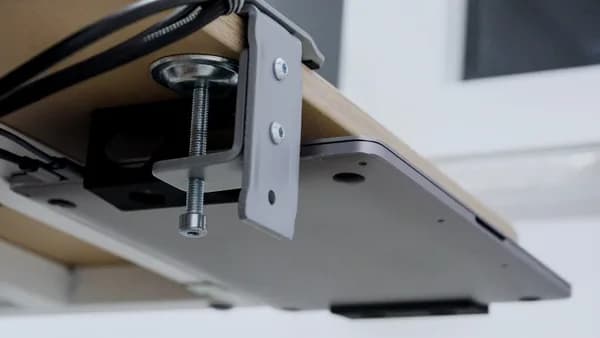
- Physical security: Keep your workspace in a secure, access-controlled environment. Lock devices when not in use.
Essential Software for Remote Development
The right software stack is crucial for both productivity and security. Here’s how to set up a secure development environment:
Cloud-Based and Containerized Environments
Workspace Isolation is a core principle. The most secure setups use local development containers, remote dev containers (such as GitHub Codespaces), or temporary VMs like Microsoft Dev Box:
| Platform | Isolation Level | Notes |
|---|---|---|
| Microsoft Dev Box | High (VM-based) | Supports secure tunnels, managed in Azure, strong isolation |
| GitHub Codespaces | High (container) | Requires GitHub authentication, supports MFA |
| Local Dev Containers | Medium-High | Use Docker containers for project-level isolation |
- Development containers: Use minimal, well-maintained base images. For Node.js and PHP, images like
setupphp/nodesupport a wide range of versions and architectures (e.g., Ubuntu 24.04, Debian 12, Node.js 24.15.0, PHP 8.5). - Run as non-root: Always configure containers to run as a non-root user to prevent privilege escalation.
- Limit capabilities: In Docker, use
--cap-drop=ALLand only add necessary capabilities.
Example Docker run command:
docker run --cap-drop=ALL --security-opt=no-new-privileges --user=developer setupphp/node:latest
Required Extensions and Tools
- Visual Studio Code (VS Code): For connecting to cloud-based environments like Microsoft Dev Box, install the Dev Box extension (version 2.0.0 or later).
- VS Code Remote Explorer: Connect to Windows Subsystem for Linux (WSL) environments for further isolation.
- Dependency management tools: Monitor and review third-party packages for vulnerabilities; restrict automatic updates and code execution.
Configuring VPNs and Secure Network Access
Protecting your remote workspace’s network traffic is essential. While the sources do not prescribe a specific VPN solution, several best practices are clear:
- Use secure tunnels for remote connections: For Microsoft Dev Box, enable Dev Tunnels to access your development environment securely from VS Code.
- Authentication for tunnel access: You must authenticate with your provider (e.g., Microsoft) before tunnels can be enabled or accessed.
- Conditional Access Policies: Use these to define access controls for Dev Tunnels, further restricting who can connect and from where.
| Access Method | Security Mechanism | Notes |
|---|---|---|
| Dev Tunnel (Dev Box) | Authenticated tunnel | Requires sign-in and authorization |
| VPN | Encrypted tunnel | (General practice, not product-specific) |
“You need to sign in to create a user session for setting up the tunnel. After the initial authentication, you can disconnect from the Dev Box.”
— [Microsoft Dev Box documentation]
Best Practices for Password and Credential Management
Credentials are a prime target for attackers. Protect them using these principles:
- Use secure storage solutions for secrets: Never store passwords or API keys in code or unencrypted files. Use managed secret stores where possible.
- Commit signing: Require cryptographic proof of code authorship. Use tools that enforce commit signing with strong passwords or biometrics.
- Access logs and regular reviews: Periodically review access logs and permissions to spot anomalies or unauthorized access attempts.
Using Multi-Factor Authentication Effectively
Multi-Factor Authentication (MFA) is now a baseline requirement for any secure remote developer workspace setup.
- Enforce MFA for all workspace access: For platforms like GitHub Codespaces or Microsoft Dev Box, MFA should be required at the organization or identity provider level.
- Consistent enforcement: Apply MFA policies across all services (code repositories, cloud environments, DevOps pipelines) for uniform protection.
“Require multi-factor authentication (MFA) to access services like GitHub or Codespaces. This can be enforced at the GitHub organization settings or through an identity provider to ensure a consistent security posture.”
— [Securing Developer Workspace, wellarchitected.github.com]
Data Backup and Disaster Recovery Strategies
While the sources do not detail backup tooling, several universal strategies are emphasized:
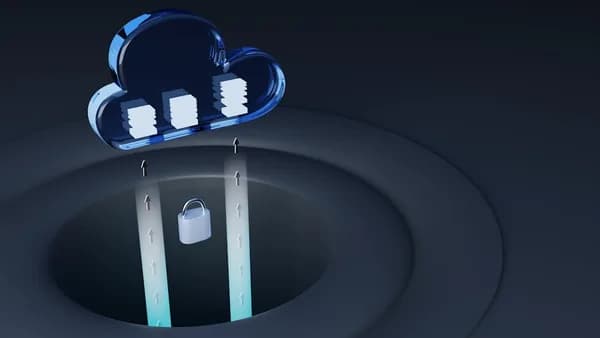
- Isolate backups: Store backups separate from your primary working environment, such as in secure, access-controlled cloud storage.
- Automate regular backups: Schedule regular, automated backups of both code and configuration data.
- Test recovery processes: Periodically restore backups to ensure your disaster recovery procedures work as expected.
Maintaining Privacy While Collaborating Remotely
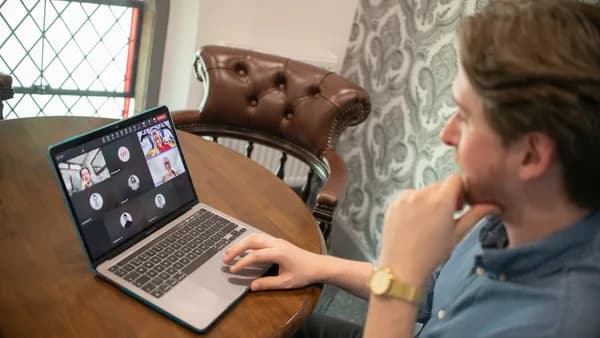
Remote collaboration tools (e.g., WebRTC-powered apps, VS Code Live Share) must be configured for privacy:
- Restrict tool access: Limit which extensions and tools have access to your codebase or workspace, especially for AI assistants.
- Review permissions: For any dependency or collaboration tool, review what data it can access and transmit.
- Avoid unnecessary exposure: For WebRTC or peer-to-peer tools, use strong authentication and avoid sharing device IDs or connection info publicly.
Example: Setting up a private WebRTC app
# Install dependencies securely
yarn add express peerjs peer
Configure your index.html and index.css with only the minimum required scripts and styles, and never expose sensitive information in publicly accessible files.
Optimizing Workspace Ergonomics and Productivity
Security should never come at the cost of productivity. Combining the right software and physical setup ensures sustained efficiency:
- Ergonomic workspace: Arrange your hardware to minimize strain—adjust your chair, monitor, and keyboard for comfort and focus.
- Automated troubleshooting: Use tools like Copilot connectivity assist with Microsoft Dev Box to quickly diagnose tunnel, authentication, or network issues directly within VS Code.
- Human-in-the-loop AI controls: Always review AI-generated code and configurations before use.
“Maintain human-in-the-loop controls and limit the tools and extensions that AI assistants can access.”
— [Securing Developer Workspace, wellarchitected.github.com]
Regular Security Audits and Updates
Securing your remote workspace is not a one-off task—it requires ongoing vigilance:
- Conduct periodic security audits: Review access logs, permissions, and workspace configurations regularly.
- Update base images and dependencies: For containerized environments, always use updated and signed base images (e.g.,
setupphp/node:latest). - Scan for vulnerabilities: Integrate vulnerability scanning into your build and deployment pipelines.
- Apply least privilege: Review and restrict permissions for users and services continually.
| Audit Task | Frequency | Tool/Location |
|---|---|---|
| Review access logs | Weekly/Monthly | Platform dashboard/logs |
| Update container images | As released | Docker image registry |
| Scan dependencies | Each build | Dependency management |
FAQ: Secure Remote Developer Workspace Setup
Q1: What is the most secure way to run a remote developer workspace?
A: Use isolated environments such as Microsoft Dev Box or GitHub Codespaces, enforce MFA, and configure containers to run as non-root with minimal privileges (wellarchitected.github.com).
Q2: How do I securely connect to my remote development environment?
A: Enable authenticated secure tunnels for environments like Microsoft Dev Box and use the VS Code Dev Box extension (version 2.0.0+) to connect (learn.microsoft.com).
Q3: What are best practices for managing credentials in remote workspaces?
A: Store secrets in secure vaults, require commit signing for code, and regularly audit access logs for anomalies.
Q4: How important is multi-factor authentication (MFA)?
A: MFA is essential and should be enforced for all workspace, code repository, and cloud platform access.
Q5: Should I use root users in my development containers?
A: No. Always run as a non-root user and drop unnecessary capabilities to reduce the risk of privilege escalation (wellarchitected.github.com).
Q6: How can I troubleshoot connectivity issues with my Dev Box?
A: Use the Copilot connectivity assist feature in VS Code with the Dev Box extension for guided troubleshooting.
Bottom Line
A robust secure remote developer workspace setup is built on strong authentication, workspace isolation, and strict least-privilege principles. Use managed, isolated environments like Microsoft Dev Box or containerized setups with current images like setupphp/node. Enforce multi-factor authentication everywhere, review dependencies and permissions regularly, and use secure tunnels for all remote access. By following these actionable, research-backed strategies, you’ll minimize risks, safeguard your code, and ensure your productivity remains rock-solid—no matter where you work.