Building a productive remote tech workspace on a budget in 2026 isn’t just about saving money—it’s about making the right investments for your health, focus, and long-term job satisfaction. Whether you’re a developer, IT consultant, or any tech professional working from home, you can create an ergonomic, efficient, and inspiring setup without overspending. This step-by-step guide will help you assess your needs, choose cost-effective equipment, and optimize your space for comfort and productivity—all with actionable tips and real-world product recommendations drawn directly from the latest research and expert sources.
Assessing Your Remote Work Needs and Space
Before buying any gear, take a close look at your unique situation and requirements. Not every remote tech professional needs the same setup, and your available space will influence your choices.
Evaluate Your Work Patterns
- Primary Tool Use: Are you coding all day, on constant video calls, or juggling project management platforms?
- Equipment Needs: Will you use a laptop, desktop, or both? Do you need multiple monitors or specialized input devices?
- Collaboration: Are video meetings critical, or is solo deep work your focus?
Choose Your Workspace
“With a little creativity and resourcefulness, you can transform a spare room, corner of a bedroom, or even a closet into a productive home office.”
— WorkinVirtual
- Dedicated Room: Ideal for those who need to keep work separate and can spare an entire room.
- Room Corner: A quiet corner in a living or bedroom can suffice with the right organization.
- Closet Conversion: Small closets can be transformed into compact “cloffices” for tight spaces.
Assess Environmental Factors
- Noise: Is your space quiet enough for focus and calls? If not, noise-canceling headphones may be a must.
- Lighting: Is there access to natural light, or will you need to supplement with lamps?
- Internet: Reliable connectivity is non-negotiable—sources recommend at least 25 Mbps download, 5 Mbps upload as a baseline for remote tech work (RemoWork Blog).
Choosing Affordable Ergonomic Furniture
Ergonomics is the foundation of a productive remote tech workspace on a budget. Poor furniture choices lead to discomfort and lost productivity—but you don’t need to overspend to get the essentials.
Budget Desks
- Secondhand Finds: “Your best bet may be local listings on Craigslist or Facebook Marketplace” (Remote.com).
- CubiCubi Writing Desk: Available on Amazon in multiple sizes, with the 47” model at $74.99. Simple, stylish, and functional.
- Standing Desk Options: Full standing desks are pricier, but a FITUEYES Height Adjustable Standing Desk riser can be added to any desk for a sit-stand experience at lower cost.
| Desk Option | Price | Key Features |
|---|---|---|
| Used Desk (Marketplace) | $50–$100 | Varies, eco-friendly |
| CubiCubi Writing Desk (47”) | $74.99 | Several sizes, sturdy |
| Gracie Oaks L-Shape Executive Desk | Varies | Ample space, storage |
| FITUEYES Desk Riser | Add-on ~$70+ | Converts desk to stand |
Ergonomic Chairs
“A bad chair will cost you more than a good one. The math is straightforward. The average remote worker spends 2,000+ hours per year sitting at their desk.”
— DailyRemote
Top Budget Picks
- Yaheetech Ergonomic Desk Chair: $49.99 on Amazon. Basic support on a tight budget.
- Hbada Chair: $129.99, flip-up arms for customization.
- Used Office Chairs: Often $50–$150 at local sales, frequently higher quality than new chairs at the same price point.
Mid-Range and Premium
- Duramont Ergonomic Adjustable Chair: $339.99; greater durability, lumbar support, and cushioning.
- Refurbished Herman Miller Aeron/Steelcase Leap: $300–$400 for best-in-class comfort and longevity (DailyRemote).
| Chair Option | Price | Features |
|---|---|---|
| Yaheetech Ergonomic Chair | $49.99 | Basic, adjustable height |
| Hbada Chair | $129.99 | Flip-up arms, ergonomic design |
| Used Office Chair | $50–$150 | Higher-quality (varies) |
| Duramont Adjustable Chair | $339.99 | Premium lumbar, well-cushioned |
| Herman Miller/Steelcase Refurb. | $300–$400 | Industry gold standard |
Tip: Even with a limited budget, prioritize an ergonomic chair over other upgrades.
Essential Tech Gear for Remote Developers
The right tech gear is crucial for a productive remote tech workspace on a budget. Here’s what the latest research recommends:
Monitors
- External Monitors: Productivity jumps with a 24”–27” external monitor. Used monitors can be found for $50–$100 (RemoWork Blog).
- Mid-Range New Monitors: Dell, ASUS, Acer ($150–$300)
- Premium: LG UltraFine, Dell UltraSharp ($400+); 4K or ultrawide displays replace dual monitors if you have the budget.
Keyboards and Mice
- Logitech K350 Keyboard: $38.99. Ergonomic, well-reviewed.
- Redragon K552 Mechanical Keyboard: $39.99. For those who prefer tactile feedback and RGB lighting.
- Anker Vertical Mouse: Under $25 (wired or wireless). Ergonomic design reduces strain.
Wrist Support:
- Grimars Wrist Rest Set: $13.99; fits any home office budget.
| Peripheral | Price | Notable Features |
|---|---|---|
| Logitech K350 Keyboard | $38.99 | Ergonomic, highly rated |
| Redragon K552 Keyboard | $39.99 | Mechanical, RGB lights |
| Anker Vertical Mouse | <$25 | Wired/wireless, ergonomic |
| Grimars Wrist Rest Set | $13.99 | Separate keyboard/mouse rests |
Webcams and Microphones
NexiGo N60 Webcam: $39.99, includes a microphone.
Aoboco Webcam: $79.99, adds a ring light.
Logitech BRIO Ultra HD Pro: ~$200, premium 4K video quality.
Audio-Technica AT2005USB Mic: $57.99, excellent for calls and webinars.
Headphones with Inline Mic: Even basic models ($20–$40) dramatically improve call quality over built-in laptop mics (DailyRemote).
Connectivity
- Reliable Internet: Minimum 25 Mbps down, 5 Mbps up recommended for tech remote work.
- Surge Protector: Protects your investment in tech gear.
Optimizing Lighting and Sound for Focus
Proper lighting and sound are essential, yet often overlooked, aspects of a productive remote tech workspace on a budget.
Lighting
- Natural Light: Position your desk near a window whenever possible (WorkinVirtual).
- Desk Lamp: Simple desk lamps or LED panels ($20–$40) can dramatically improve video call quality by eliminating harsh shadows (DailyRemote).
- Ring/Soft LED Lights: Useful for video-heavy roles, often included with higher-end webcams.
Sound
- Noise-Canceling Headphones: Essential if your environment is noisy or distracting.
- External Microphones: Significantly improve clarity on calls and recordings.
- Room Dividers/Curtains: Create a quiet zone by separating your workspace from living areas (RemoWork Blog).
Cable Management and Workspace Organization Tips
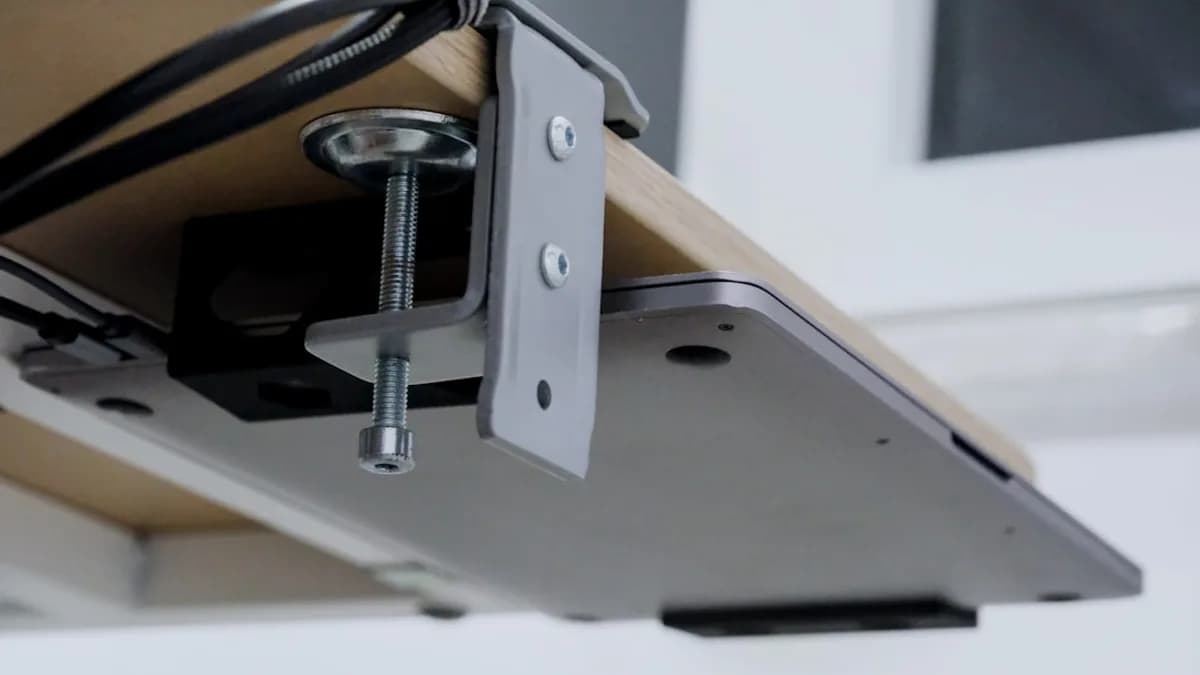
A cluttered desk undermines even the best tech setup. Organization doesn’t need to be expensive:
- Cable Ties/Clips: Affordable solutions for taming wires.
- Repurposed Items: Use baskets, crates, or old boxes for DIY storage (WorkinVirtual).
- Monitor Arms: Free up desk space and improve ergonomics; basic models start at $30–$50 (DailyRemote).
- Shelves/Drawers: Keep non-essentials off your main work surface for better focus.
- Minimalist Approach: Fewer items on your desk equals fewer distractions.
“Keep desk surface clean and organized. Use drawers or shelves for storage. Have everything you need within reach.”
— RemoWork Blog
Utilizing Free and Low-Cost Productivity Software
Your software stack is just as important as your hardware. While many platforms charge premium prices, several effective solutions are free or low-cost:
Project and Task Management
- Productive.io: Free 14-day trial, no credit card required. Integrates project management, time tracking, reporting, and budgeting—especially useful for agencies, consultancies, and IT services.
- Integrations: Productive.io connects with Slack, QuickBooks, Hubspot, Google Calendar, Xero, and more.
| Productivity Tool | Free Trial | Key Features |
|---|---|---|
| Productive.io | 14 days | Project mgmt, time tracking, AI |
Other Free Resources
- Free Online Courses/Webinars: Upskill without cost (WorkinVirtual).
- Minimalist, Open-Source Apps: For note-taking, time-blocking, and focus management.
Incorporating Break and Relaxation Zones
Sustained productivity depends on regular breaks and a workspace that supports both focus and relaxation.
- Break Zone: Even a small chair or mat in a corner can serve as a “mental reset” space (WorkinVirtual).
- Plants: Improve air quality and reduce stress—choose low-maintenance varieties for ease.
- Personal Touches: Photos, artwork, or motivational quotes boost enjoyment and morale (RemoWork Blog).
- DIY Decor: Create wall art or repurpose furniture for a unique, inspiring vibe.
Maintaining Work-Life Balance in Your Workspace
The line between work and home life can blur quickly. Structuring your environment helps maintain balance:
- Physical Boundaries: Use room dividers, curtains, or even furniture arrangement to separate work from leisure (RemoWork Blog).
- Clear Start/End Rituals: Begin and end the day with specific actions—such as turning off monitors or changing lighting—to signal transitions.
- Set Rules with Family/Roommates: Communicate your work hours and need for focus.
- Declutter Regularly: Reset your workspace at the end of each day to reduce stress.
Budget-Friendly Upgrades to Consider Over Time
You don’t need to buy everything at once. Start with essentials and gradually add features as your budget allows:
| Upgrade Tier | Typical Spend | Recommended Upgrades |
|---|---|---|
| Essentials (<$200) | $150–$230 | Used chair, basic desk, monitor, input devices |
| Comfort Upgrade (~$500) | $400–$650 | Ergonomic chair, new monitor, monitor arm, lamp |
| Professional ($1,000+) | $1,000+ | Sit-stand desk, premium chair, 4K/ultrawide monitor |
- Chair: Upgrade to a high-end ergonomic model as soon as possible.
- Monitor: Move from used/basic to new 24”–27” or even ultrawide/4K as budget grows.
- Desk: Consider a sit-stand desk or motorized options for long-term health.
- Lighting and Accessories: Add ring lights or premium desk lamps for video work.
“Your home office doesn’t need to be perfect from day one. Start with the essentials… and build from there.”
— RemoWork Blog
Summary and Action Plan
Building a productive remote tech workspace on a budget in 2026 is entirely achievable with strategic choices and incremental upgrades. Here’s a step-by-step action plan based on research:
- Assess your work and space needs: Define your key tasks, available space, and environmental factors.
- Secure core furniture: Prioritize an ergonomic chair and practical desk—shop used to save.
- Invest in tech essentials: Start with a used or basic monitor, ergonomic keyboard/mouse, and reliable internet.
- Optimize lighting and sound: Maximize natural light, add a desk lamp, and use basic headphones for calls.
- Organize and declutter: Use affordable cable management and storage solutions.
- Leverage free/low-cost software: Platforms like Productive.io provide robust project and time management at low or no cost.
- Personalize and adapt: Add plants, art, and break zones to support well-being.
- Maintain boundaries and balance: Physically and mentally separate work from home life.
- Upgrade over time: As your budget or employer stipends allow, invest in higher-quality ergonomic and tech upgrades.
FAQ: Productive Remote Tech Workspace Budget
Q1: What is the minimum investment needed for a functional remote tech workspace?
A: According to multiple sources, you can start with the essentials for $150–$230, including a used office chair, basic desk, used monitor, and basic input devices (DailyRemote, RemoWork Blog).
Q2: How important is an ergonomic chair if I’m on a tight budget?
A: Ergonomic chairs are the #1 priority for health and productivity. Even a basic office chair with lumbar support or a secondhand model for $50–$150 is vastly better than a kitchen chair.
Q3: What are the best ways to save money on desks and chairs?
A: Shop local secondhand listings or online marketplaces for used commercial furniture, which can offer higher quality at lower prices than new budget options (Remote.com, RemoWork Blog).
Q4: What tech gear offers the best ROI for developers?
A: External monitors (24”–27”), ergonomic keyboards/mice, and a reliable internet connection are the top upgrades for productivity per dollar (RemoWork Blog).
Q5: Are there free or low-cost tools for project and time management?
A: Yes, Productive.io offers a free 14-day trial and integrates project management, time tracking, and reporting features suitable for tech professionals and agencies.
Q6: How can I make my workspace more comfortable without spending much?
A: Use natural light, add plants, repurpose storage items, and keep your setup minimalist and decluttered for better focus and less stress (WorkinVirtual).
Bottom Line
The research is clear: building a productive remote tech workspace on a budget is about smart, incremental choices. Prioritize ergonomics, invest in the essentials first, and adapt your setup as your needs and resources grow. Don’t let a limited budget stop you from optimizing your comfort, productivity, and well-being—start with the basics, stay organized, and upgrade over time as you build your ideal remote tech environment.