
Prepare Your Workspace for Testing Remote Work Alternatives
Swapping your laptop for something new isn’t just about the device—it’s about rethinking your whole workflow. Before you try out XR glasses, headsets, or tablets, map out the software you absolutely need: video calls, document editing, cloud storage, and any niche tools your role requires. Secure a fast internet connection and gather all your must-have peripherals: external keyboard, mouse, stylus, and chargers.
Create a workspace that actually lets you focus. That means a comfortable chair, good lighting, and as few distractions as possible. Set out every device you plan to test so you can swap quickly and log your initial impressions. According to ZDNet, the author’s methodical approach—rotating through setups in real remote work scenarios—revealed strengths and dealbreakers that only show up after hours of real use.
Test XR Glasses for Remote Work: Setup and Daily Use Tips
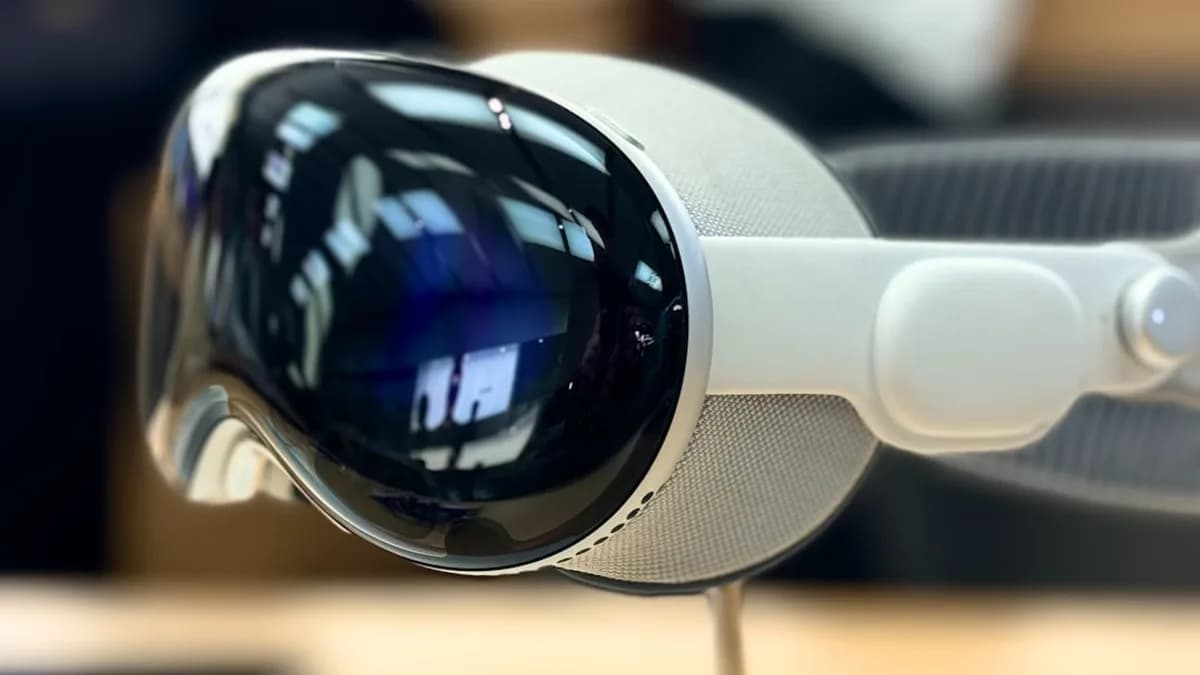
XR glasses promise immersive multitasking, but the payoff depends on careful setup. Start by connecting them to your main work device—most models require a Bluetooth or USB link—and calibrate the fit to minimize pressure on your nose and ears. Open your core productivity apps and try arranging virtual windows in your field of view. XR platforms usually support common cloud tools, but integration with legacy or niche software may be hit-or-miss.
Expect a steep learning curve. Navigating apps with gestures or voice commands feels clunky at first, and you’ll need to tweak layouts for each new task. Eye strain can set in after long sessions, so build in breaks and adjust brightness as needed. ZDNet’s tester found that while XR glasses delivered true multitasking potential, comfort issues and software gaps held them back from true laptop replacement status.
Use Headsets as a Laptop Alternative: Step-by-Step Guide
The right headset can turn voice and audio into your main interface, but only if it fits your workflow. Choose a model with clear mic pickup, long battery life, and strong integration with your preferred virtual assistant. Connect the headset to your phone or tablet, then configure voice controls for launching apps, dictating messages, and handling calls.
Maximize productivity by creating custom voice shortcuts for repetitive tasks. But be ready for snags: not all work apps support hands-free navigation, and switching between audio and screen-based tasks slows things down. ZDNet’s month-long test revealed that, while headsets can handle calls and quick notes comfortably, they struggle with document editing, spreadsheets, and any workflow that relies on heavy multitasking or visual feedback.
Optimize Tablets for Remote Work: Essential Setup and Apps
A tablet can be a strong laptop alternative—if you build the right setup. Pick a tablet that supports multitasking (at least two windows side-by-side) and invest in a quality keyboard case and stylus. Load essential productivity apps, then customize home screens and quick-access widgets to streamline your routine.
External keyboards and styluses make a huge difference for typing and annotation. Use file management apps to organize downloads and cloud sync tools to keep work accessible across devices. ZDNet’s real-world testing showed that tablets handled email, browsing, and video calls well, but ran into friction with complex file workflows and advanced spreadsheet tasks. The key is to map your daily habits onto the tablet’s strengths—and build in workarounds for the rough edges.
Compare Each Remote Work Setup: Performance and Practicality
After 30 days, clear patterns emerged. XR glasses unlocked futuristic multitasking but fell short for all-day comfort and app compatibility. Headsets excelled for calls and dictation but couldn’t handle visual or multitasking-heavy work. Tablets hit the sweet spot for portability and light productivity, but struggled with power-user workflows and file management compared to a full laptop.
Each alternative suits a different work style: XR for those who thrive on novelty and have flexible software needs, headsets for hands-free callers and minimalists, tablets for those who value portability over power. The common thread: none fully replaced a top-tier laptop for complex, multi-app work.
Choose the Best Laptop Alternative for Your Remote Work Needs
The right pick depends on your workflow. If your day is packed with video calls and quick notes, a headset-driven routine might work—with some patience for its limitations. If you’re on the move and mostly handle email, browsing, and light editing, a well-accessorized tablet is the strongest contender. XR glasses, while not ready for prime time, hint at where things could go if comfort and app support catch up.
Budget, ergonomics, and long-term comfort matter as much as raw specs. For now, transitioning to any alternative means accepting tradeoffs—especially if you rely on multitasking or complex file work. The ZDNet test shows that, while the laptop remains king for knowledge work, the gap is narrowing. If you want to experiment, start by mirroring your core workflows on your device of choice for a week; you’ll quickly spot which compromises you can live with—and which send you back to your laptop.
What remains unclear: No device fully replaces a laptop for every user, especially for demanding, multi-app workflows. Future updates in XR platforms or tablet OS features may tip the balance, but today’s options still require tradeoffs.
What to watch: Software updates, new productivity accessories, and improvements to comfort and multitasking in XR and tablets. If one of these platforms cracks full-featured multitasking and long-session comfort, the laptop’s days as the default remote work machine might finally be numbered.
Key Takeaways
- Remote work devices are evolving, but most alternatives still have major trade-offs compared to laptops.
- XR glasses and headsets offer novel features but require adaptation and may not support all essential software.
- Choosing the right setup means balancing comfort, compatibility, and productivity for your specific workflow.